
Add/Remove CA Certificates via Network Component
Administrators can push CA certificates to devices using a Network Policy Component.
Certificates uploaded to a network component will be installed on devices when the policy sync occurs.
Accessing the CA Certificate Feature
- Log in to the mambo EMM console and navigate to Management > Policy Component.
- Click Add Component, choose Network as the component type, and enter a unique name.
- Once created, locate your Network Component in the list and select More > Configure.
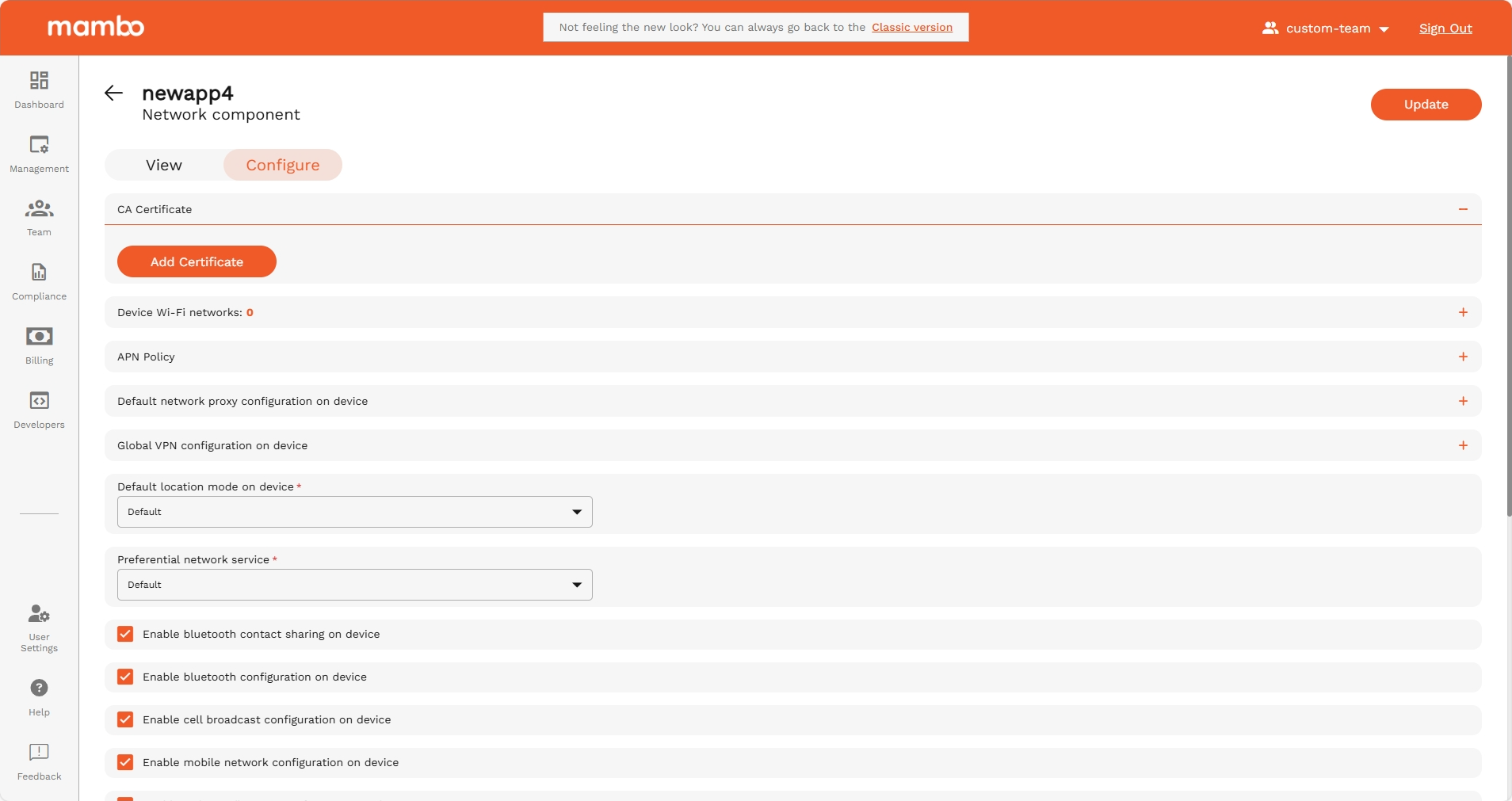
- The CA Certificate feature is available within the Network Component configuration view.
Uploading CA Certificates
- Click the Add CA Certificate button.
- Select the certificate file to upload.
- Note: Certificates must be in
.crtformat. - The uploaded certificate will be applied to all devices associated with this network component after the next policy sync.
Viewing Existing CA Certificates
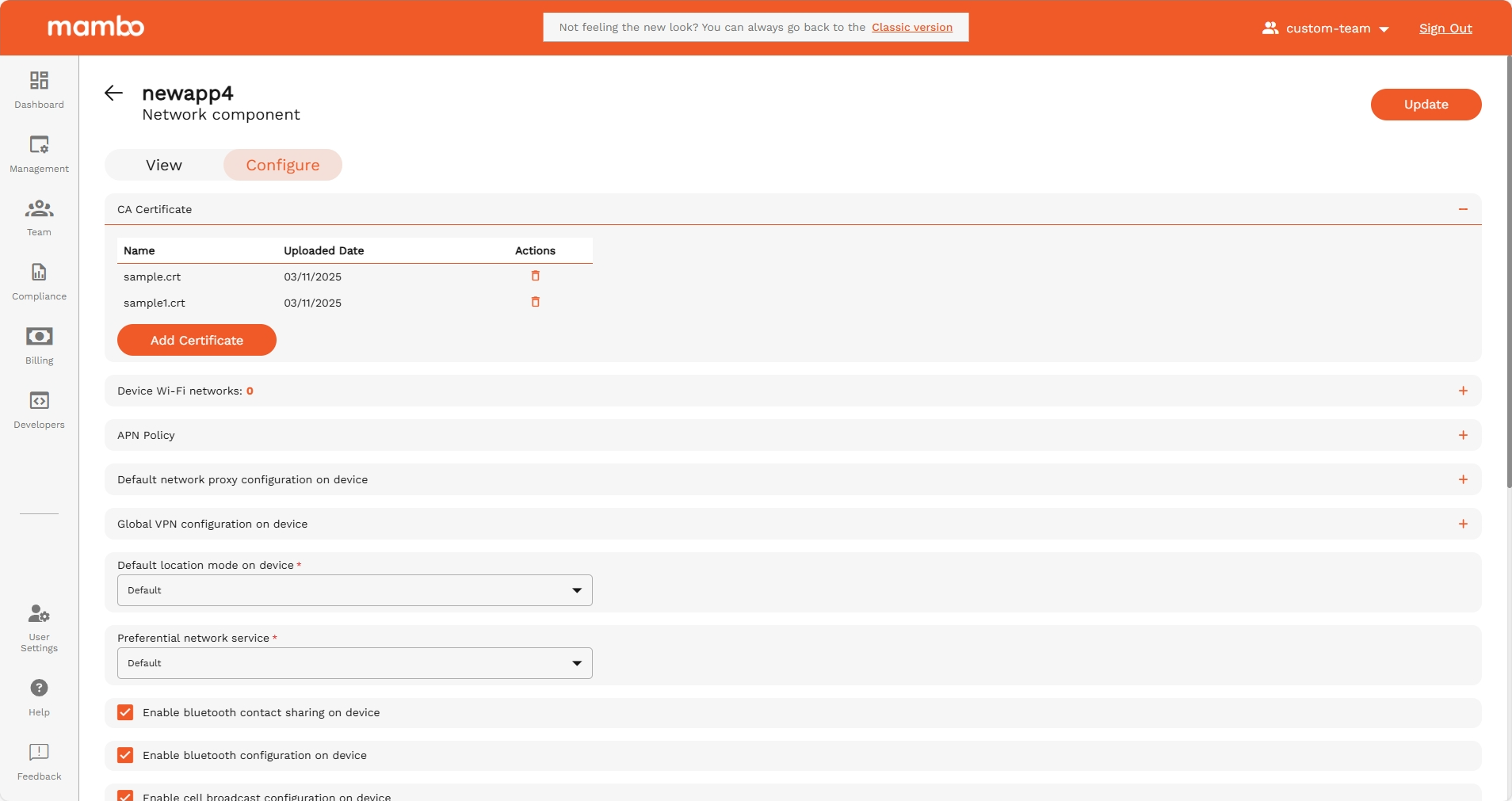
- Certificates are displayed in a table format within the CA Certificate section.
- Table columns include:
- Name → The name of the CA certificate file.
- Uploaded Date → The date when the certificate was uploaded.
Deleting CA Certificates
- To delete a certificate, click the Delete button next to the corresponding entry in the table.
What's Next?
- 🔗 Learn how to Configure Network Settings to set up Wi-Fi, APN, VPN, proxy, and other connectivity restrictions within a Network Component.