
Reports in mambo EMM
Reports help you monitor device activity, compliance, and billing data in your team.
Depending on your role, you can view, generate, download, or delete reports.
Accessing Reports
- Log in to the mambo EMM console
- Go to Management > Reports
- You will see:
- Report Type
- Requested by
- Date created
- Status
If no reports exist, a “no data” message will be displayed.
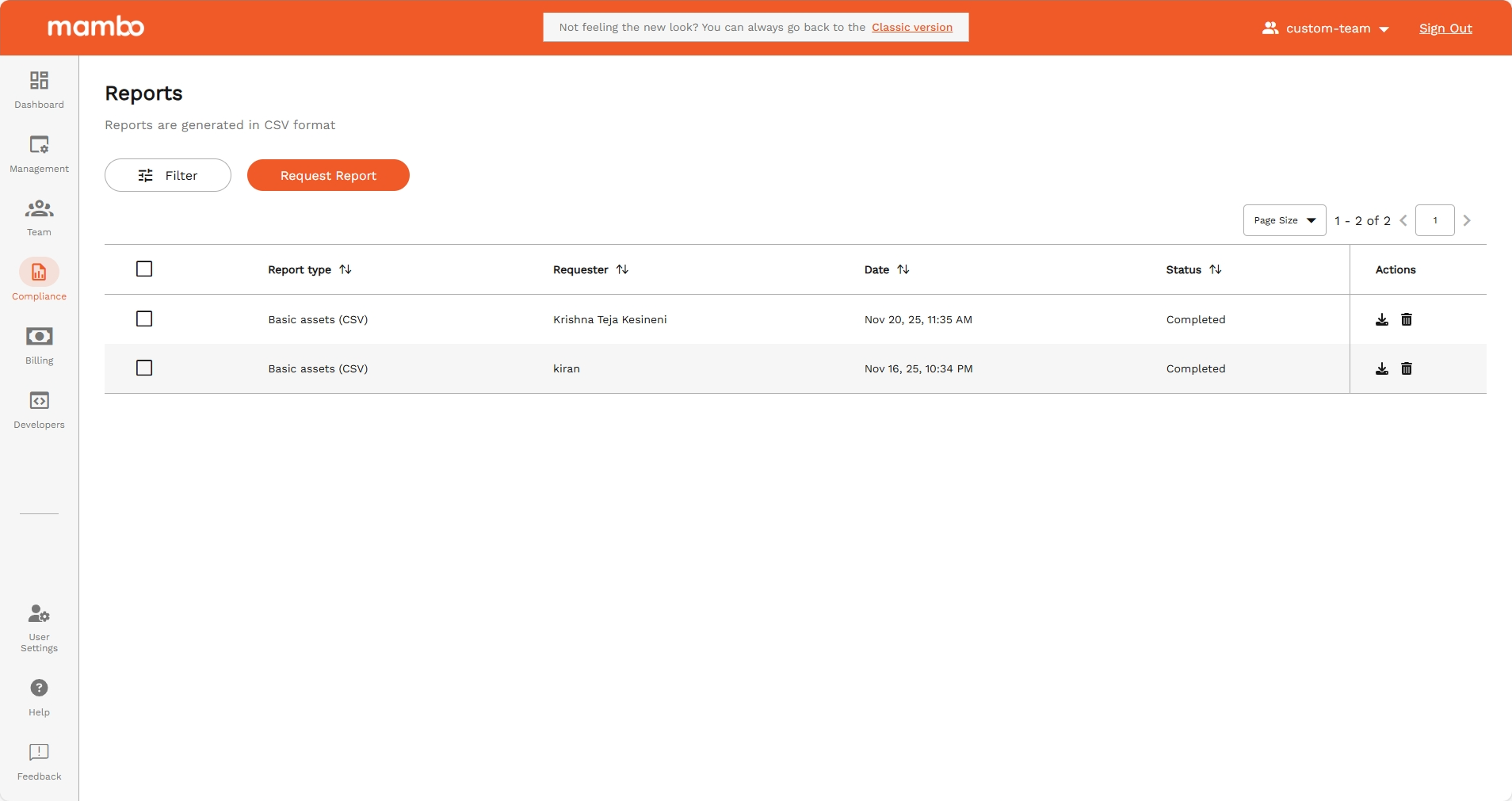
Available Report Types
- Activity Reports – Device usage and activity
- Compliance Reports – Policy and security compliance
- Billing Reports – Usage and billing details (Admin only)
Some reports are only available for reseller or admin accounts.
Requesting a Report
- Click Request Report (top right)
- Select the Report Type
- Choose date range or filters (if required)
- Click Submit
The report will appear with one of these statuses:
- Queued – Waiting to start
- In Progress – Being generated
- Success – Ready to download
- Error – Failed
Large reports may take a few minutes.
Downloading a Report
When the status is Success:
- Click the Actions
- Select Download icon
Deleting Reports
Single report
- Record → Delete
Multiple reports
- Select checkboxes → Delete
Deleted reports cannot be recovered.
Report Statuses (Quick Guide)
Flow: Submitted → Queued → In Progress → Success / Error
Permissions
Your actions depend on your role:
Troubleshooting
- Stuck in Queued/In Progress: Wait a few minutes or try again later
- Error: Check permissions, billing status, or date range
- Slow reports: Try smaller date ranges
Summary
Reports in mambo EMM help you:
✅ Monitor devices
✅ Track compliance
✅ Review usage & billing
✅ Support audits and decisions