
Device Insights
The Device Insights section in the mambo EMM console provides real-time diagnostic data, application performance analytics, and remote log-collection capabilities for each managed device.
This allows you to troubleshoot issues, view app health, and capture detailed logs without requiring physical access to the device.
Available Tabs in Device Insights
Device Insights contains the following tabs:
- Stats – App performance metrics and resource usage trends
- Logs – Trigger and download ADB logcat output
- Bug Logs – Generate and download Android bug reports
- ADB Script (permission-based) – Run remote ADB shell commands on the device
🔐 ADB Script appears only for the users who have permission to access it.
Accessing Device Insights
Before using the Device Insights feature, it must be configured in the application policy component.
- Log into the mambo EMM console and navigate to Management > Devices.
- Find the device for which you would like to see device insights.
- Select Actions > More > DeviceInsights.
- Click on the DEVICE INSIGHTS option to view details.
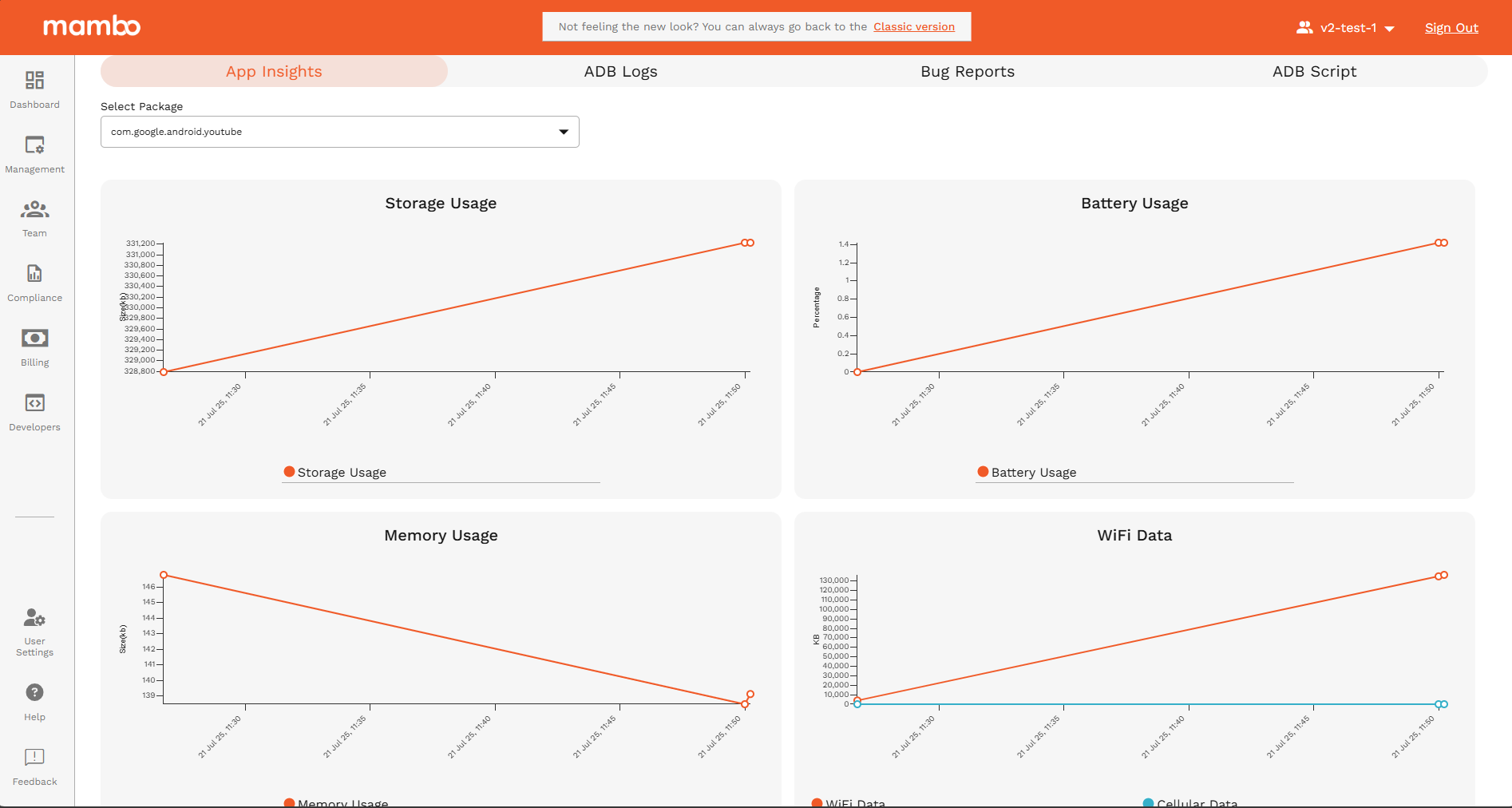
- This opens a page with a dropdown menu for selecting a package and a line chart illustrating the device's resource usage.
- Choose the Package Name from the dropdown menu. The line chart dynamically updates to display the selected package's Storage usage, Battery usage, Memory usage, and Data usage (Wi-Fi and Cellular) over time based on the predefined time interval.
Understanding Usage Metrics
Data Usage
- Overview: Shows total data consumption across all devices and applications.
- Graphs and Charts: Visual representations of data usage over time.
Memory Usage
- Overview: Displays total memory usage.
- Graphs and Charts: Memory usage trends.
Storage Usage
- Overview: Total storage used on devices.
- Graphs and Charts: Storage usage patterns.
Battery Usage
- Overview: Battery consumption metrics.
- Graphs and Charts: Battery drain trends over time.
Optimization Strategies
Based on the insights gathered, you can implement the following optimization strategies:
-
Data Usage: Limit background data for high-usage apps.
-
Memory Usage: Optimize or uninstall apps with high memory consumption.
-
Storage Usage: Clear cache or remove unnecessary files/apps.
-
Battery Usage: Restrict battery-draining apps or enable battery saver modes.
Data Visualization
Each metric is displayed in a line graph:
-
The x-axis represents time, with intervals determined by the configuration.
-
The y-axis represents the metric's value.
1. Stats — App Performance Insights
The Stats tab provides performance and resource usage metrics for each app installed on the device.
What You Can View
- Storage usage (App, Cache, Data)
- Battery consumption
- Memory usage
- Network usage (Wi-Fi & Mobile Data)
- Usage statistics
- Last time the app was used
- Total time in foreground
How to Use
- Select the desired app package from the Package dropdown.
- View:
- Usage tiles (recent usage and time-in-foreground)
- Charts showing historical patterns for memory, battery, storage, and network activity
- Hover over chart points to see exact values.
If no insights exist for the selected app, a message will indicate that no data is available.
2. Logs — ADB Log Capture
Use the Logs tab to remotely trigger and download ADB logcat from the device.
When to Use
- App crashes
- Performance issues
- Debugging inconsistent device behavior
- Developer-requested diagnostics
Log Capture Workflow
A log capture job can be in one of three states:
In Progress
- Shows a spinner and timestamp
- Actions available:
- Retry Capture (after cooldown timer)
- Cancel the running capture
- Refresh Status
Failed
- Displays a warning message with failure time
- You may retry immediately
Completed
- Completed logs appear in a table
- Each row includes:
- Completion date
- Download action for the log file
Cooldown Period (5 minutes)
After triggering a log capture:
- A 5-minute cooldown begins
- Retry Capture is disabled until cooldown expires
- The remaining time is displayed on the button
3. Bug Logs — Android Bug Report Collection
The Bug Logs tab lets you trigger collection of full Android bug reports, which include:
- System logs
- Kernel logs
- ANR traces
- Memory dumps
- System state details
When to Use Bug Logs
- OS-level issues
- Device crashes or freezes
- When logcat alone is insufficient
- Advanced debugging
The UI and workflow are identical to the Logs tab:
- Initiated → In Progress
- Failed → Retry
- Success → Download
Cooldown rules also apply.
4. ADB Script — Remote ADB Command Execution
🔐 Requires adb-command permission.
The ADB Script tab allows running custom ADB shell commands on the device.
Example Use Cases
- Checking system properties (
getprop) - Inspecting installed packages
- Pulling diagnostic snippets
- Querying device state
How to Use
- Type your ADB command(s) into the script box.
- Select Run Script.
- On success:
- A confirmation message appears
- The input resets automatically
- On failure:
- An error notification will appear
Job Handling and Status
Behind the scenes, all operations (logs, bug logs, scripts) run as asynchronous jobs.
The UI always displays the most recent job first.
Possible job states:
- INITIATED – Running
- FAILED – Did not complete
- COMPLETED – Ready to download
Summary
Device Insights provides a complete diagnostic toolkit for each managed device:
✔ Visualize app-level performance trends
✔ View usage metrics over time
✔ Remotely capture ADB logs and full bug reports
✔ Run advanced ADB shell commands (if permitted)
These tools help teams troubleshoot issues efficiently, reduce device handling time, and improve overall visibility into device behavior.
FAQs
Q: How often is the data updated?
A: Data is updated based on the pre-defined time interval set by admin.
Q: Can I export the data?
A: Not now, but the feature will be coming soon.
Q: Is there any limit in the number packages that can be added to device insights?
A: Yes, currently supports up to 5 packages per policy.
Q: Can device insights run on other OEM devices as well?
A: No, Device insights work only with RHINO devices for now.
Support
For further assistance, contact our support team at support@mambomobility.com