
Welcome to Mambo EMM – the platform for managing devices, teams, and policies with ease.
This quick guide walks you through everything you need to begin, while linking to detailed pages for deeper learning.
Account Registration (Sign Up) {#signup}
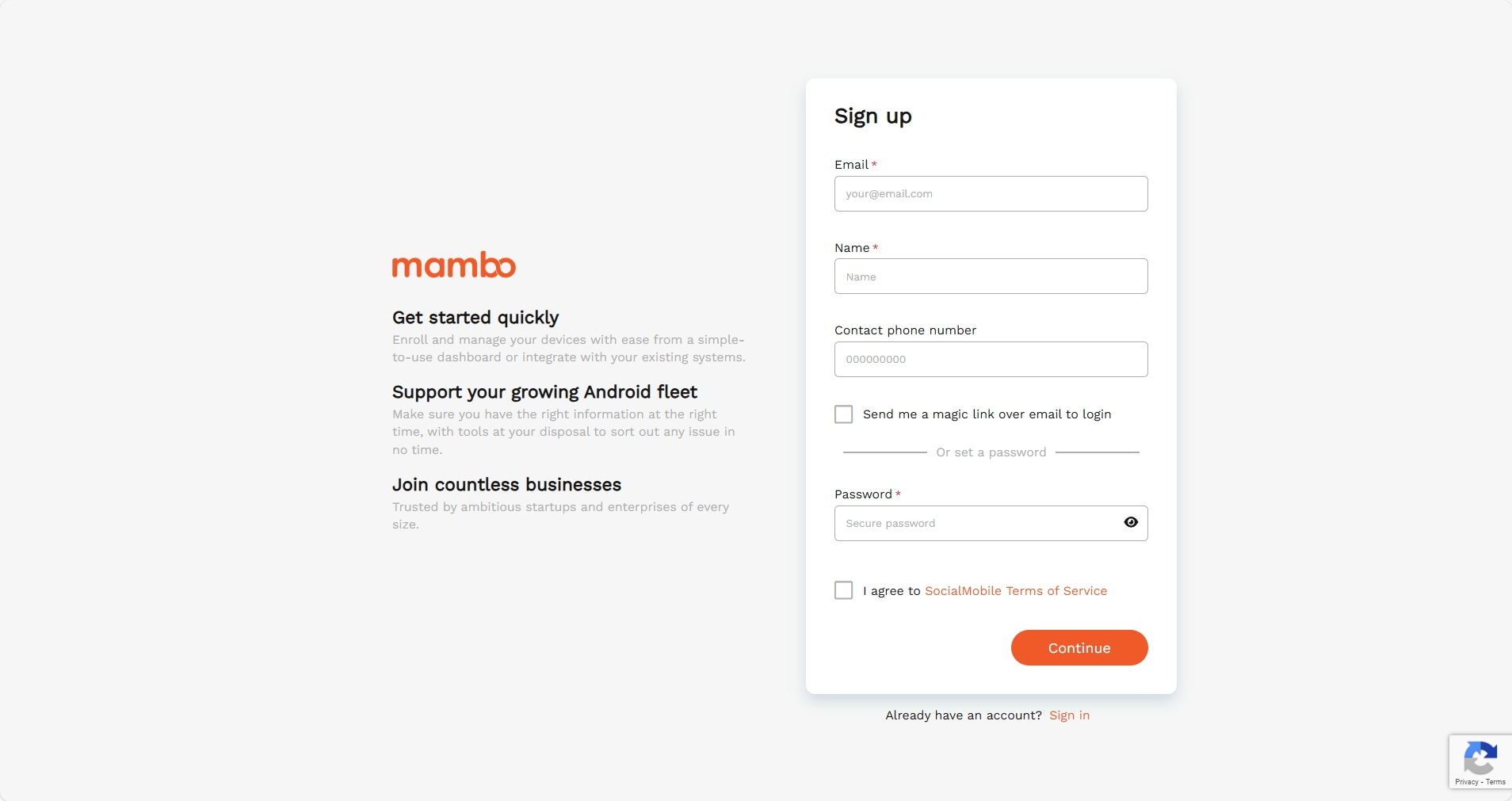
Create your Mambo EMM account by following below procedure.
Steps
- Go to https://dashboard.mambo.com/auth/register.
- Fill in:
- Full Name
- (Optional) Phone Number
- Password, or enable Passwordless Login.
- Accept your organization’s Terms of Service.
- Complete the ReCAPTCHA(if prompt) and click Continue.
- Check your inbox for the verification email and click the link to activate your account.
Didn’t get the email? Use Resend Verification or check your spam/junk folder.
User Onboarding {#user-onboarding}
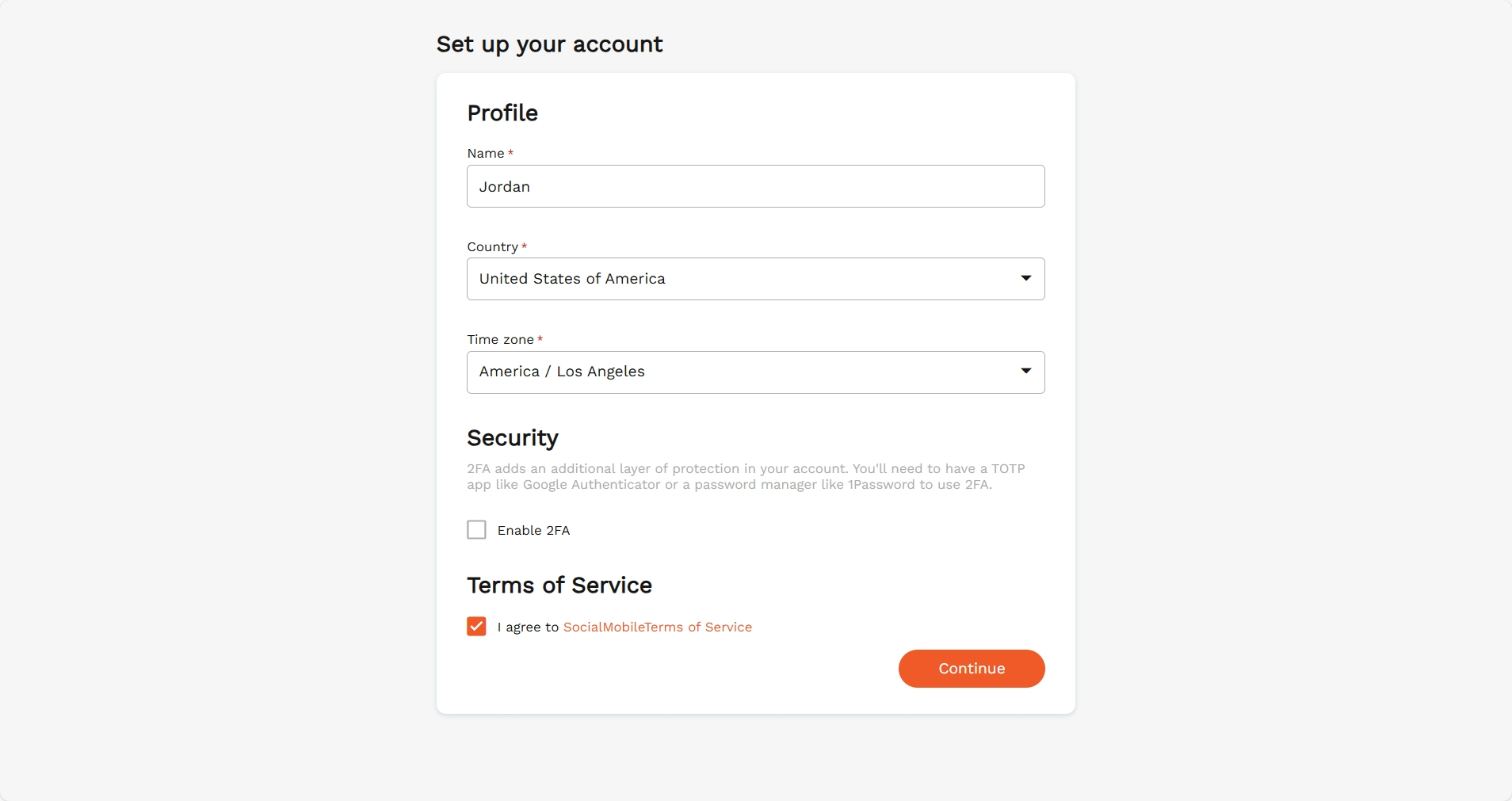
Once signed in, you’ll be guided through onboarding to complete your profile and security.
- Complete Your Profile
Enter your full name, choose your country, and select a timezone (filtered by country). - Set a Password (Optional)
Enable password login if you prefer it over SSO, then create a strong password. - Configure Security
Enable or confirm Two-Factor Authentication (2FA) as required. - Accept Terms
Review and agree to your reseller’s Terms of Service. - Finalize
Click Continue to save and access your dashboard.
Team Onboarding {#team-onboarding}
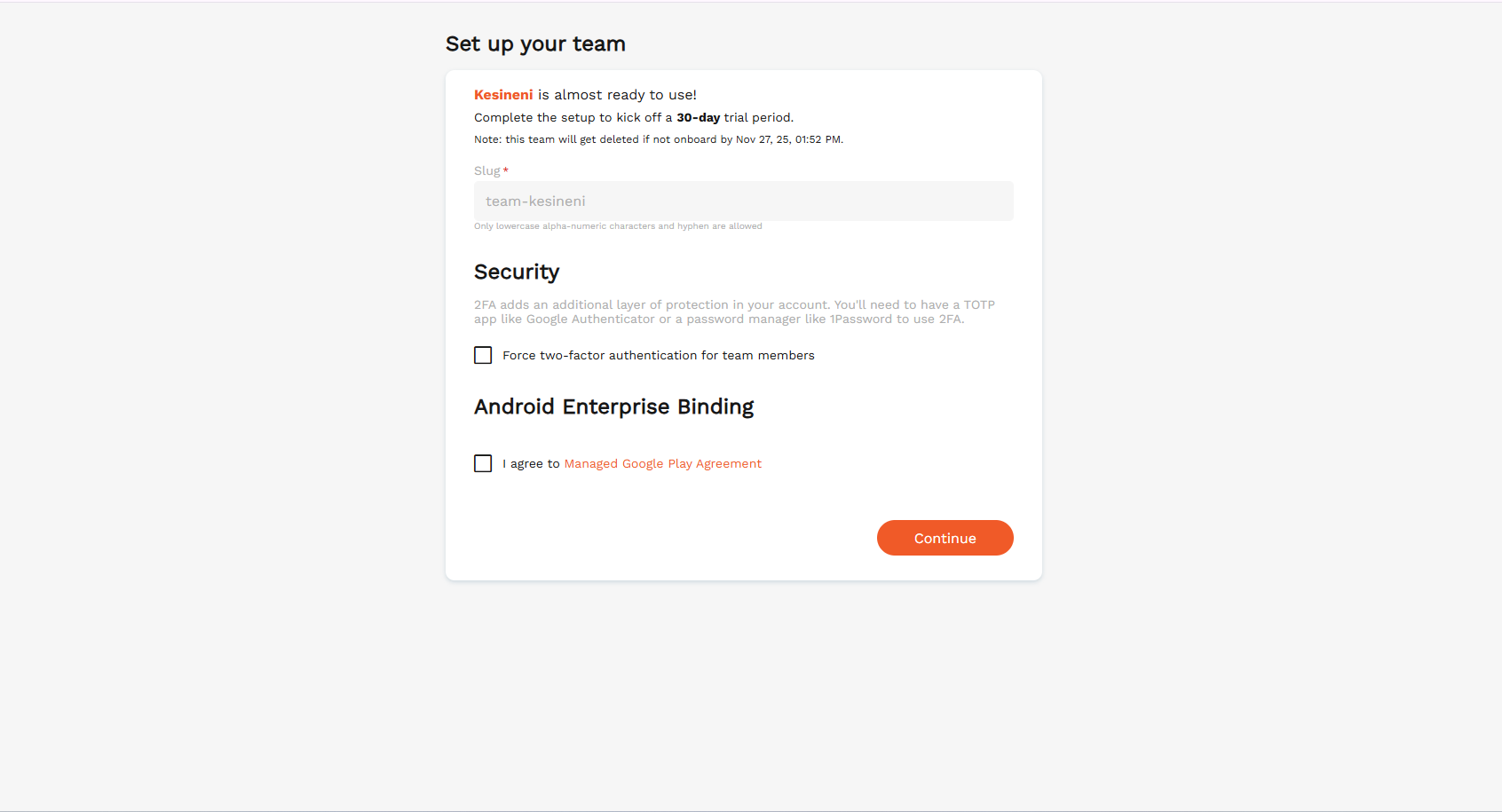
Admins or team owners complete this after user onboarding.
For new teams
- Team Name – A display name for your team that will appear throughout the workspace.
- Team Slug – A unique identifier used in your team’s subdomain. (Only lowercase letters, numbers, and hyphens are allowed.).
Security
- Force Two-Factor Authentication (2FA) - If enabled at the team level, 2FA becomes mandatory for all users in the team and must be configured using a TOTP app (e.g., Google Authenticator, 1Password).
Android Enterprise Binding
- Review and accept the Managed Google Play Agreement.
- Bind the team to Android Enterprise through Google.
- Return to Mambo to finalize the setup.
Android Enterprise Binding is required to fully configure the team.
Invite Members {#add-members}
Bring teammates into your workspace.
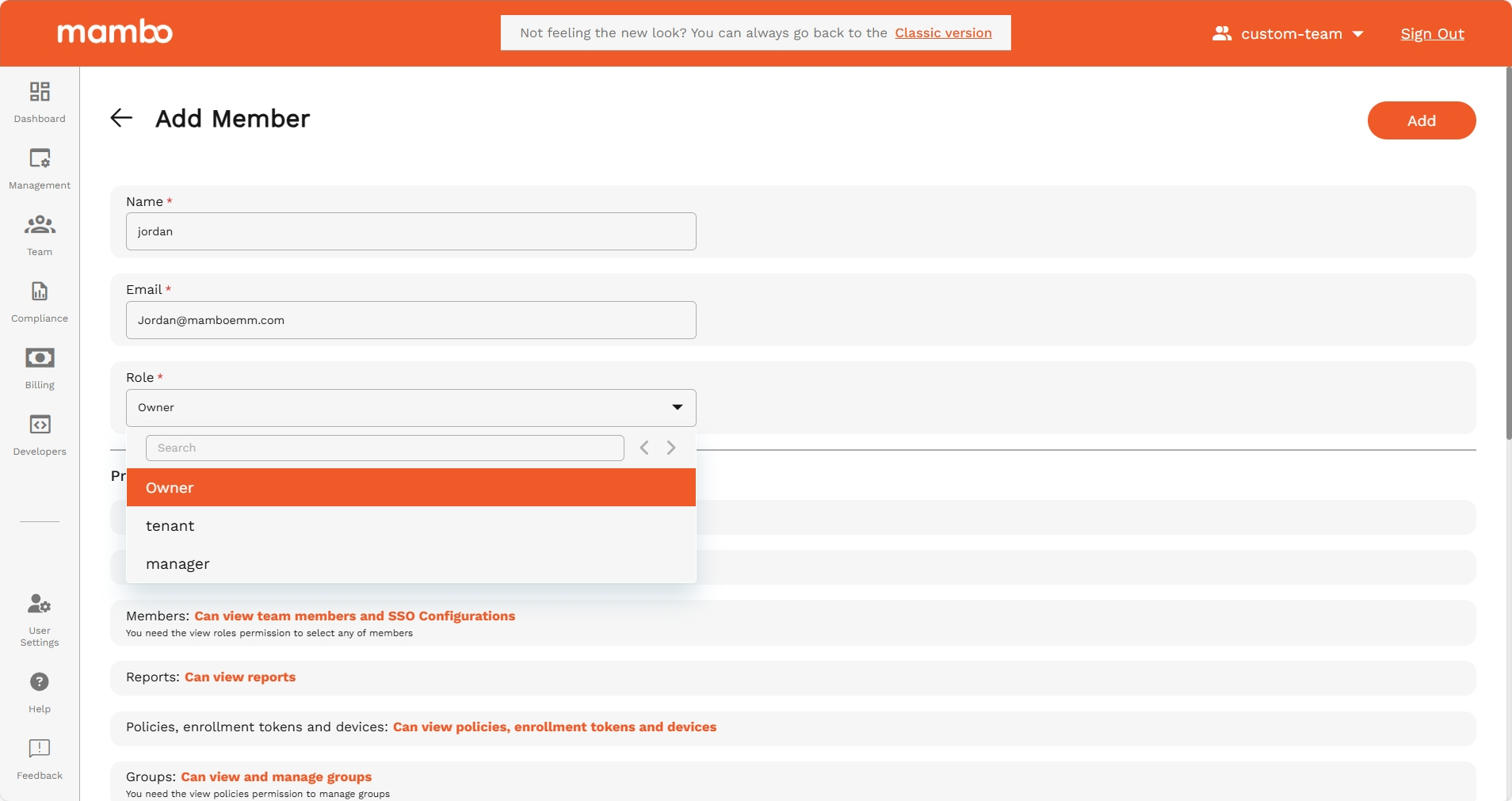
How to Add a Member
- Navigate to Team → Members.
- Click Actions → Add Member.
- Enter their Name and Email.
- Select the appropriate Role from the dropdown.
- Click Add.
Invitations expire after 7 days.
Re-invite or allowlistmamboemm.comandmambomobility.comif emails aren’t delivered.
➡️ Learn about how to add a member to your team ›
Manage Policies {#policies}
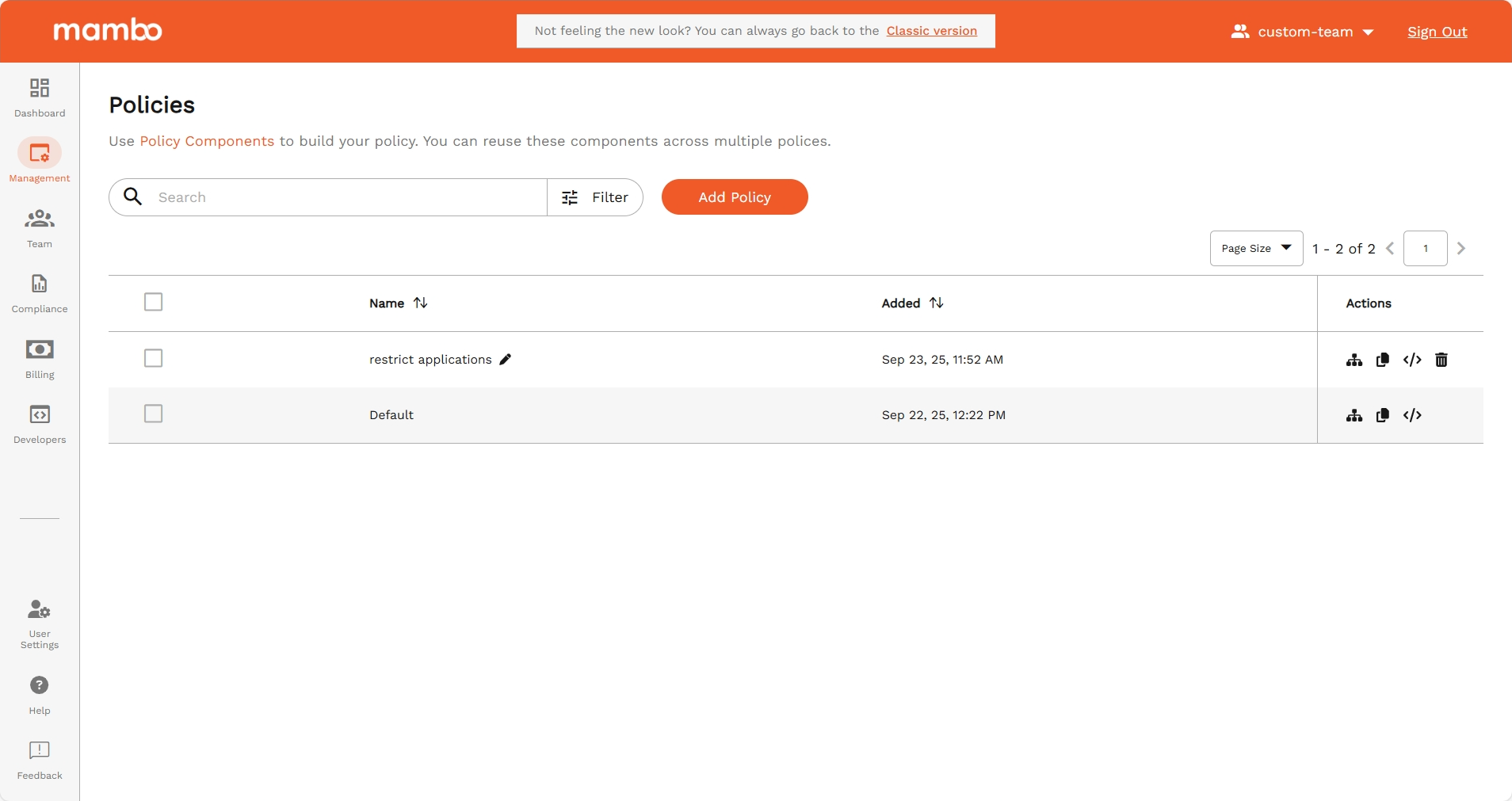
Policies define how enrolled devices behave.
- View all existing policies from Management → Policies.
- Use these actions:
- Add – Create a new policy with name, description, and configurations.
- Clone – Duplicate and tweak an existing one.
- View JSON – Inspect or download the raw policy.
- Delete – Permanently remove policies no longer needed.
Assign Policy Components to a Policy{#policy-components}
Enhance policies with reusable configuration blocks.
- Open Management → Policies.
- Select a policy → More → Components.
- Pick a component you’ve created and confirm.
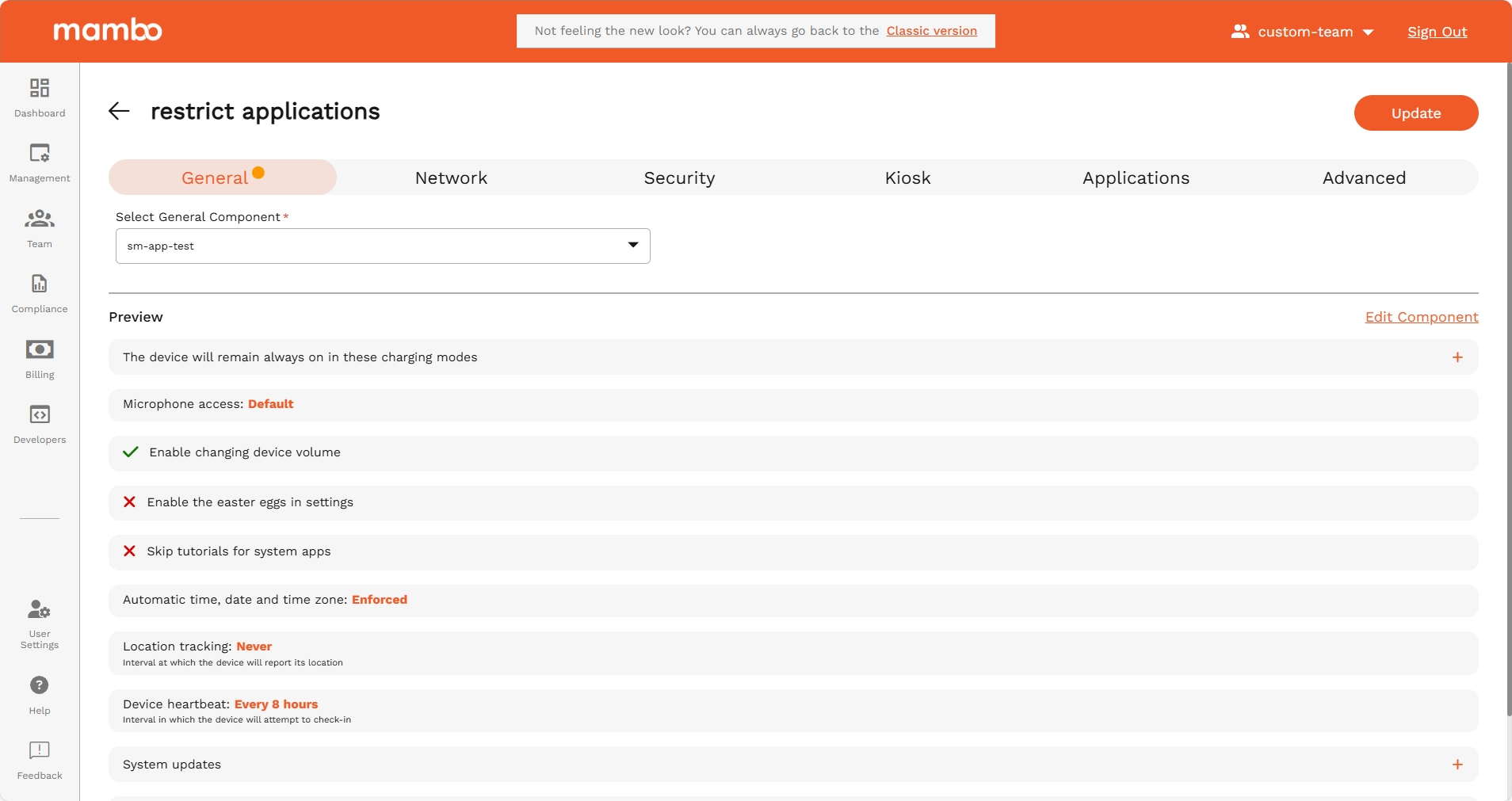
Components let you apply granular controls or reuse settings across multiple policies.
➡️ More about Policy Components ›
Enroll Devices {#enrolling-devices}
Quickly register Android devices with a QR code.
Prerequisites
- A valid Enrollment Token created in the console.
- Device must be factory reset.
Enrollment Flow
- Turn on your device from a factory reset state.
- On the Android Welcome screen tap the screen six times to launch the QR reader. Note that taps need to be done in quick succession to work.
- Use the QR reader on the device to scan the Enrolment Token QR code, this can be found on the Show details action of the desired enrolment token.
- Follow the on-screen prompts to complete the Enrolment.
- The device will enrol into the mambo EMM console.
After sometime, you will see your newly enrolled device in Management > Devices.
➡️ Step-by-step Device Enrollment ›
By following these steps, you’ll have a secure account, a configured team, and managed devices ready to go.