
Kiosk Component
The Kiosk Policy Component allows you to lock a device into Kiosk Mode, where only selected applications are available and the user cannot access the rest of the device.
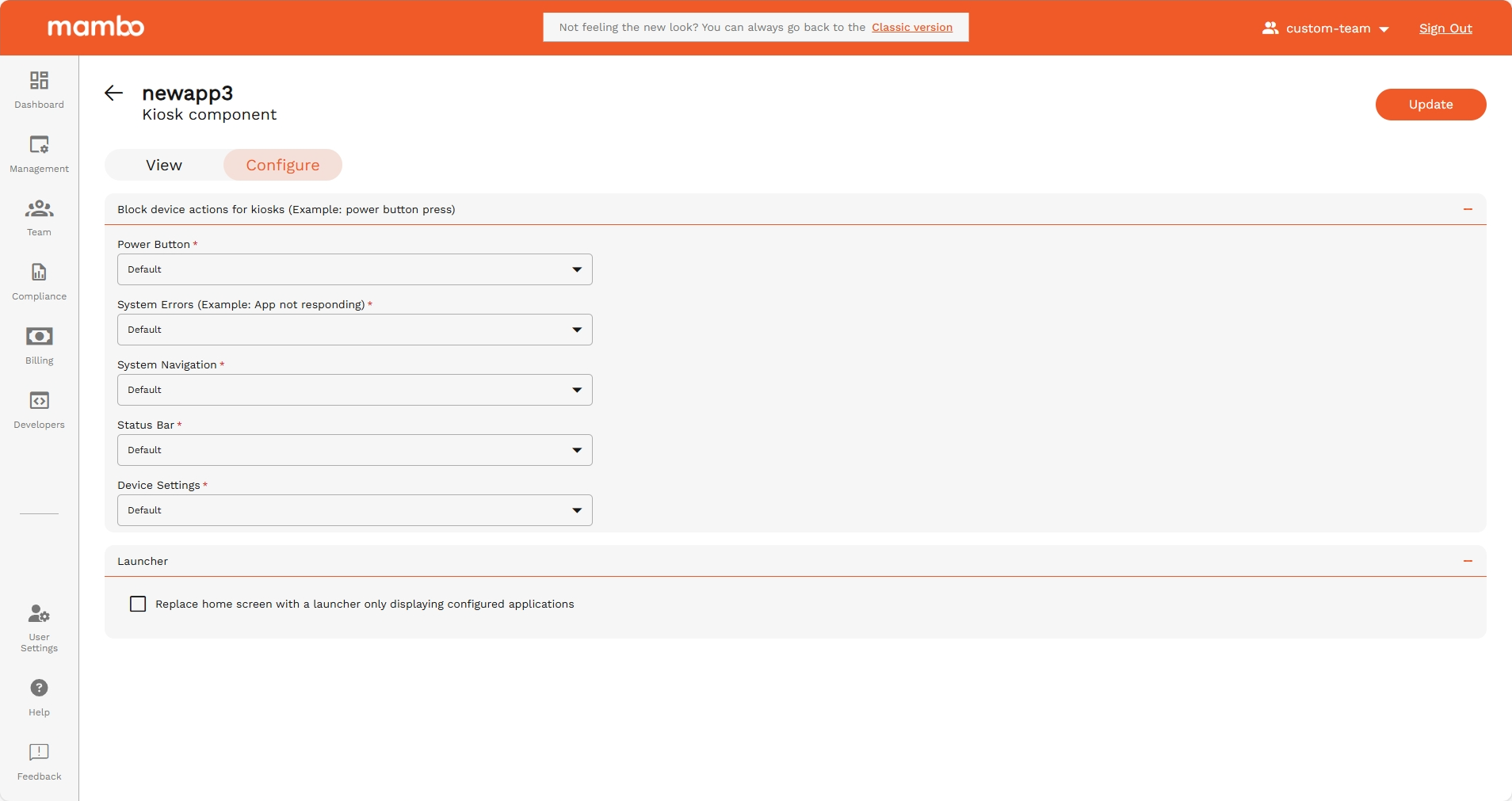
Block Device Actions
These settings stop users from exiting the kiosk or accessing system features.
✅ Recommended for all kiosk devices
Kiosk Launcher
When this option is enabled, the normal phone/tablet home screen is replaced by a Kiosk Launcher: Replace home screen with a launcher only displaying configured applications
This means:
- Only the selected apps are shown
- The user cannot access any other apps
- The device becomes a single-purpose device
Kiosk Type
There are two kiosk types available:
✅ Native
- Simple and secure kiosk mode
- Displays only the selected applications
- Suitable for most standard use cases
✅ Available on all plans
⭐ Advanced
- Full design and layout control
- Custom app positioning
- Custom background color or image
- Multiple pages
- Custom message on screen
- Orientation control (Portrait / Landscape)
⚠️ Advanced Kiosk is only available on the Advanced Billing Plan
Advanced Kiosk Settings (Advanced Plan Only)
If Kiosk Type = Advanced, extra options become available:
Applications
Choose the applications you want to display on the kiosk screen.
Only these apps will be available to the user.
Orientation
Select the screen orientation:
- Portrait
- Landscape
- Auto
Layout Definition
You can manually control the layout of the kiosk screen:
This lets you create a fully customized app grid.
Background Type
You can choose the kiosk background as either:
🎨 Color
- Select a plain colour
- Best for clean, minimal layouts
- Good for brand colours
🖼 Image
- Upload a custom image
- Best for showing:
- Company logo
- Instructions
- Branded backgrounds
Message
You can display a custom message on the kiosk home screen.
This message is always visible.
Examples:
- "Welcome to ACME Services"
- "Tap an application to continue"
- "This device is managed by IT"
When should you use Kiosk Mode?
Use the Kiosk Policy Component when you need a device to:
✔ Run only one or a few apps
✔ Be used by multiple people
✔ Be tamper-proof
✔ Prevent users changing settings
✔ Provide a dedicated function
Perfect for public or business use environments.
Advanced Kiosk – Known Issues & Limitations
As of version 1.16, Advanced Kiosk has been promoted to production.
If you experience any issues, please contact the mambo EMM support team or send feedback using FEEDBACK in your team console.
Wallpaper limitation
- The wallpaper image will be cropped and centered automatically.
- We recommend creating a wallpaper using the longest edge as both dimensions and placing all visible content within the size of the shortest edge.
Example:
A 1920 × 1080 device should use a 1920 × 1920 image, with key content centered inside a 1080 × 1080 safe zone, if both orientations are used.
- If the device is locked to a single orientation, a resolution-specific image can be used.
- Multiple policies may be required for different screen resolutions to avoid cropping issues.
This is an Android limitation, and a universal image may not scale perfectly.
We recommend using resolution-specific policies until improvements are released.
Previously known (now resolved)
- ~~Auto-rotate may not work correctly~~ ✅ Fixed
- ~~Removing Advanced Kiosk may require a restart~~ ✅ Fixed
- ~~Wallpaper may take time to load on first enrolment~~ ✅ Improved
Summary
The Kiosk Policy Component helps you to:
✅ Lock the device into Kiosk Mode
✅ Display only approved apps
✅ Block power, navigation & settings
✅ Prevent misuse
✅ Customize screen layout (Advanced plan)
✅ Add background and message
✅ Control screen orientation
This is one of the most powerful components for single-purpose devices.