Manage Custom Variables
The Manage Custom Variables feature allows administrators to create, view, and delete team-specific custom variables. These variables can be used throughout the system for automation, rules, or device-level configurations.
Accessing Custom Variables
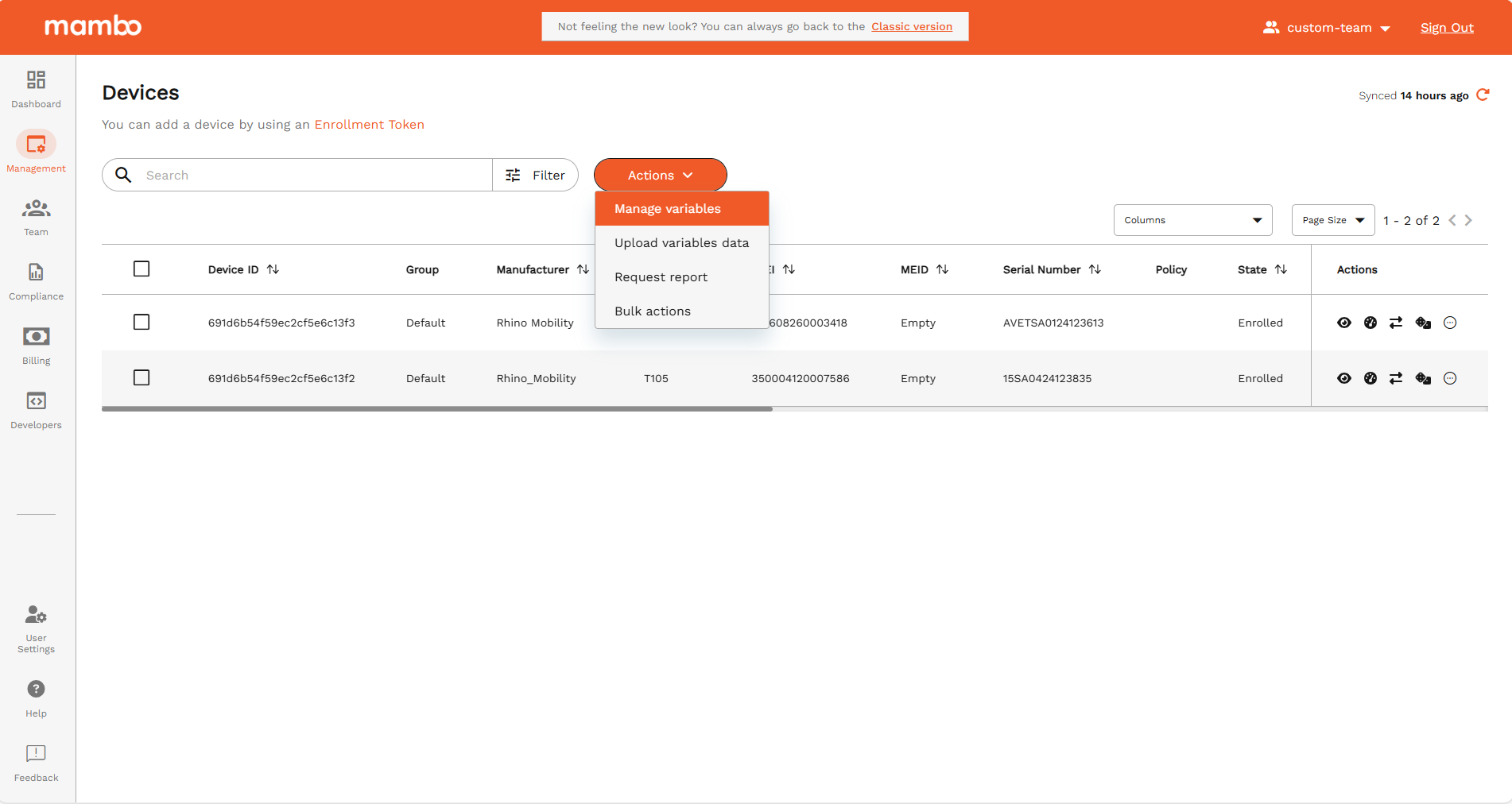
- Log into the console and navigate to Management > Devices.
- Select your team.
- Go to Actions > Manage Custom Variables.
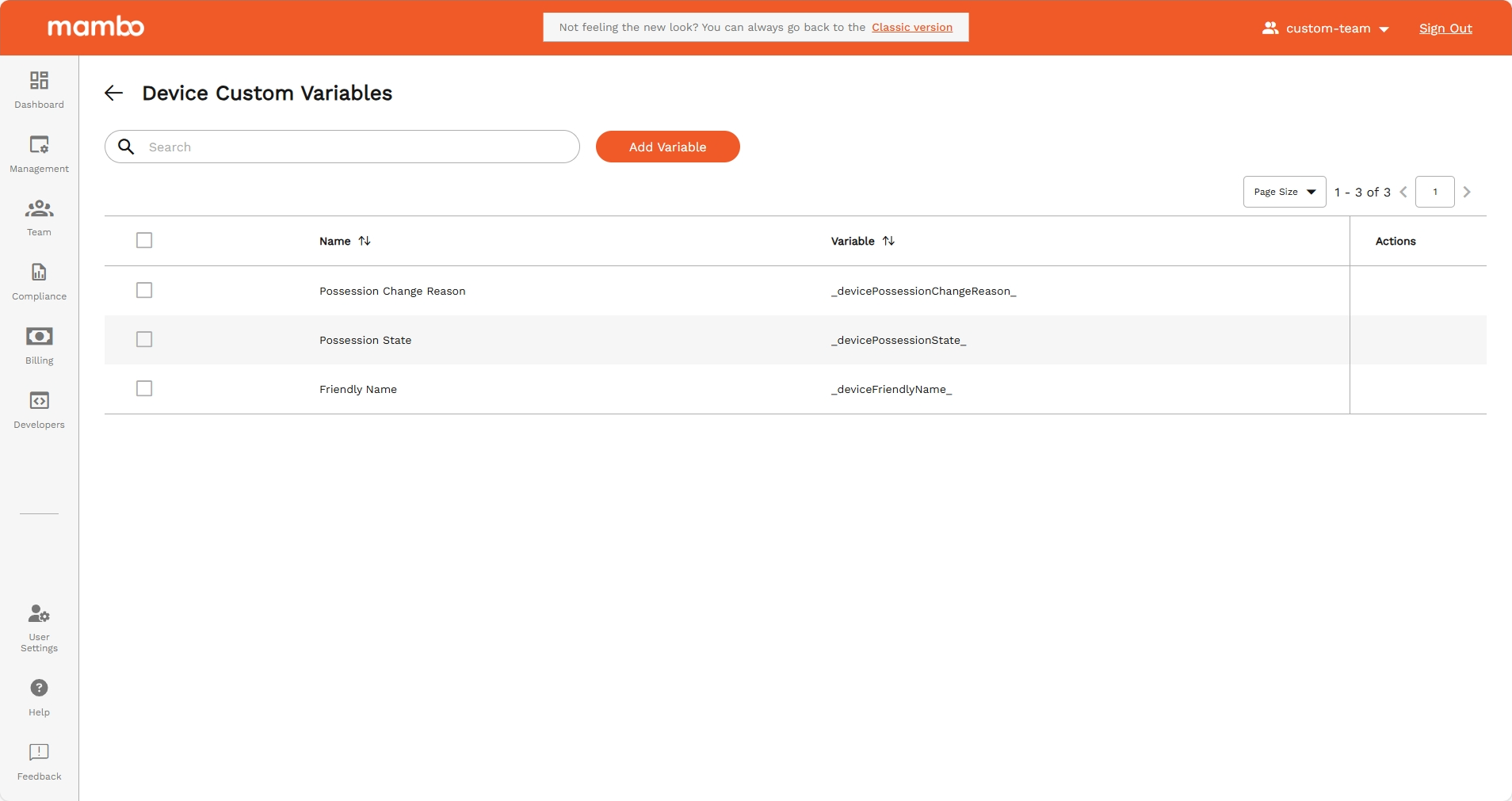
This opens the custom variables management page, where all existing variables are listed in a table.
The Manage Custom Variables page displays:
- A table of all existing custom variables
- Search, sort, and pagination controls
- Row-level and bulk actions (such as Delete)
- A button to create new variables (only if permitted)
Each variable shows:
Protected variables cannot be selected or deleted.
Creating a Custom Variable
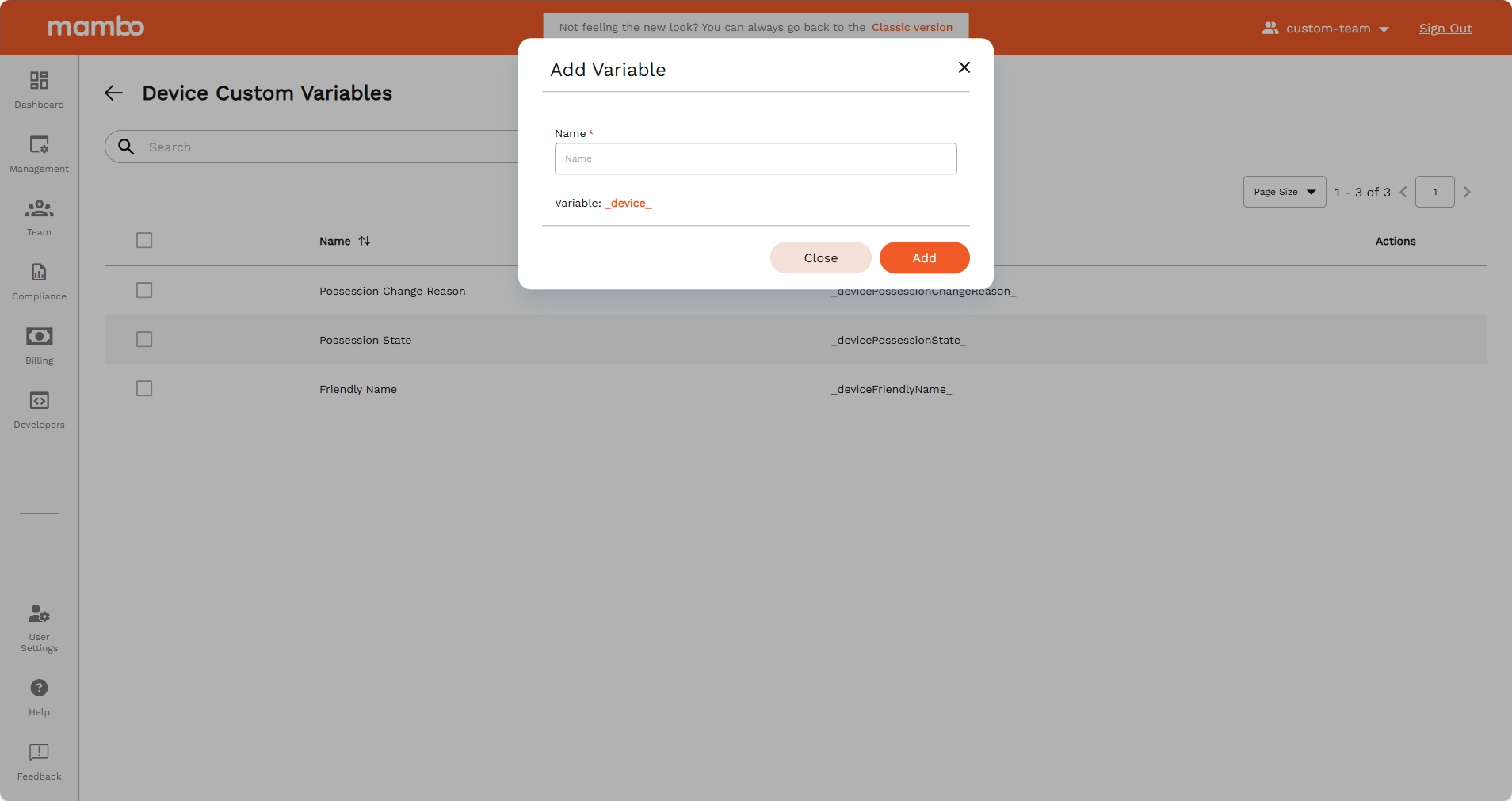
To create a new variable:
-
Click Add Variable at the top of the page.
The Add Variable dialog opens. -
Enter the Name of your variable.
-
The system will preview the final variable key (e.g.,
). -
Click Add to save the variable.
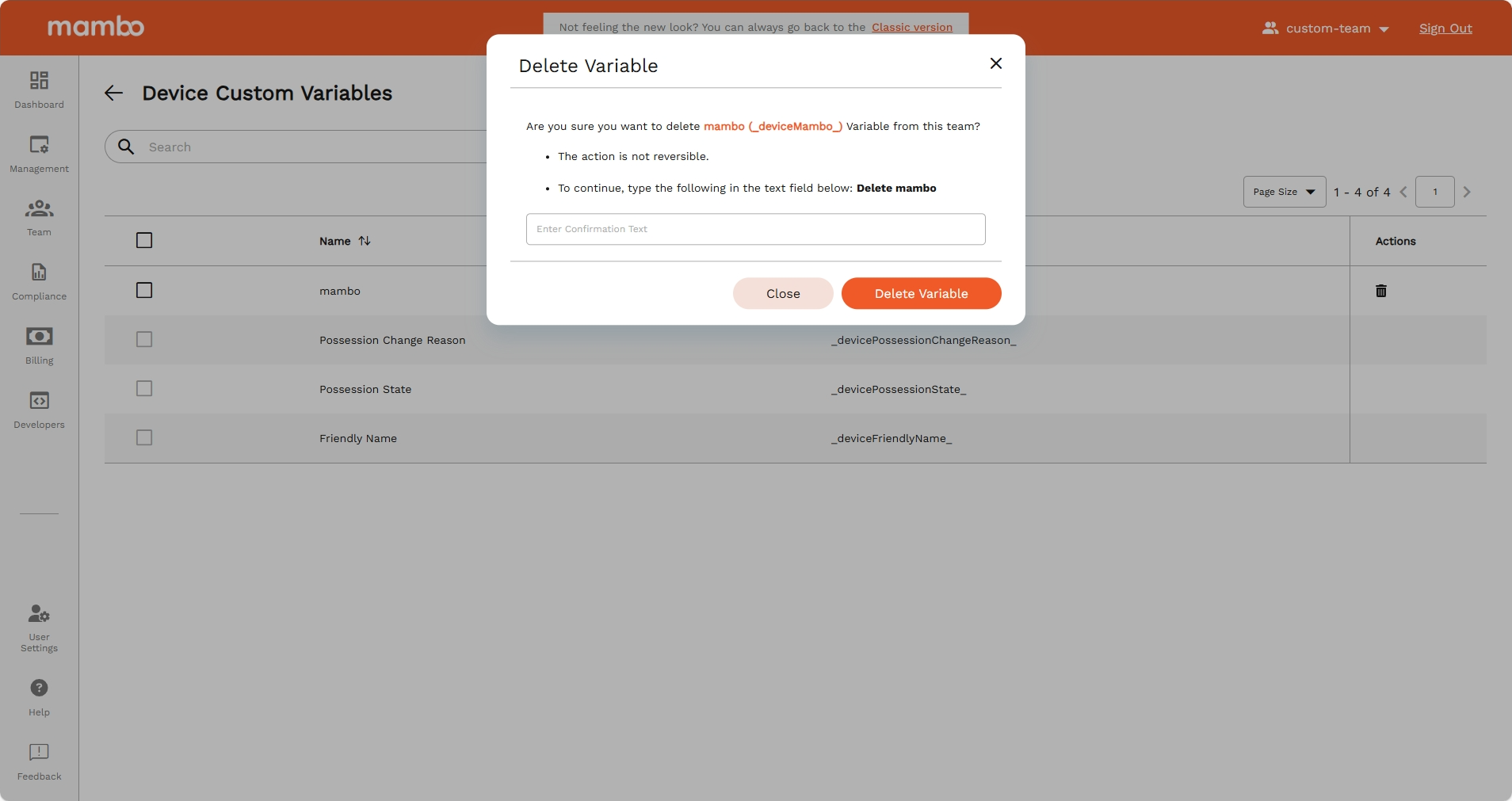
Deleting Custom Variables
You can delete one or multiple variables at once.
Deleting Variables
- Select one or more variables from the table
(only non-protected variables can be selected). - Choose Delete from:
- Row actions (for single delete)
- Bulk actions (for multiple delete)
- A confirmation dialog appears showing the selected variable(s).
- Click Delete to confirm.