
Reboot a Device
The Reboot command allows administrators to remotely restart a managed device directly from the console. This is helpful when a device becomes unresponsive, requires a refresh, or needs to apply system changes.
✅ Supported only on fully managed devices running Android 7.0 (API level 24) or higher
What happens when you reboot a device?
When a reboot command is sent:
- The device shuts down and restarts automatically
- Any current user session is interrupted
- Open apps will be closed
- The device may take 1–3 minutes to come back online
⚠️ Note: The device must be connected to the internet for the command to be delivered.
How to Reboot a Device
- Log in to the mambo EMM console
- Navigate to Management > Devices
- Locate the device you want to reboot
- Click the More (⋯) menu in the Actions column
- Select Reboot
- (Optional) Check Set custom expiry to define a different timeout
- Click Reboot to send the command to the device
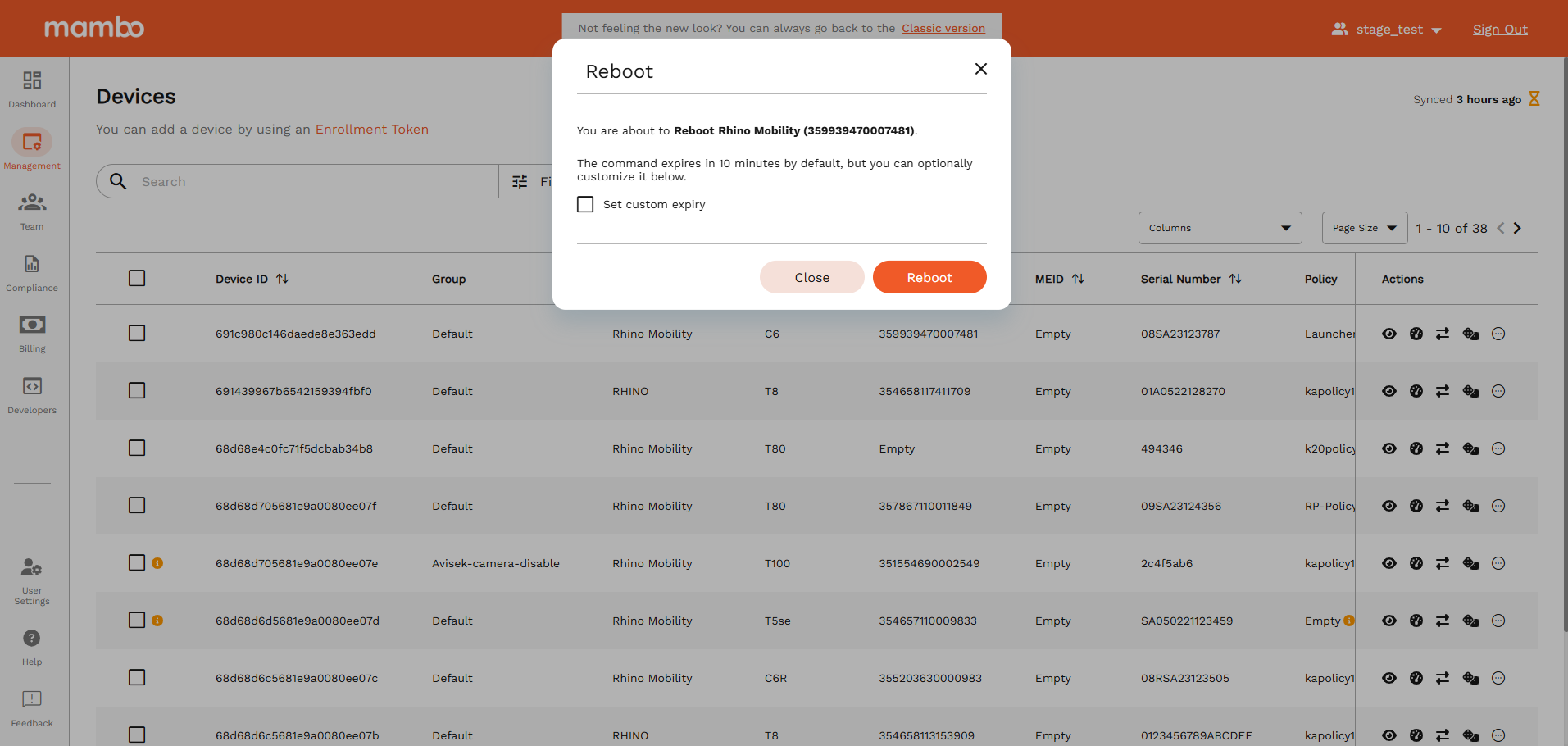
Command Expiry
By default, the reboot command:
- Expires in 10 minutes
- Can be customized (seconds / minutes / hours / days) before sending
If the device does not receive the command within the expiry time, the reboot will not occur.
Permissions Needed
To reboot a device, your role must include:
✅ View Devices
✅ Can reboot devices
If these permissions are missing, the Reboot option will not appear.
What's Next?
- 🔒 Learn how to Lock a Device
- 🧹 Learn how to Wipe / Delete a Device
- 📡 Learn how to Remote Control a Device