
Remote Control
The Remote Control feature in mambo EMM allows administrators to view and operate a managed Android device directly from the console. This is useful for:
- Remote troubleshooting
- Providing support to users
- Performing actions without physical access to the device
- Verifying device status in real time
Remote control works through the EMM Companion app, which must be installed and properly configured on the device.
How to Access Remote Control
- Log in to your mambo EMM console.
- Go to Management > Devices.
- Locate the device you want to access.
- Click the Actions (⋯) icon next to the device.
- Select Remote control.
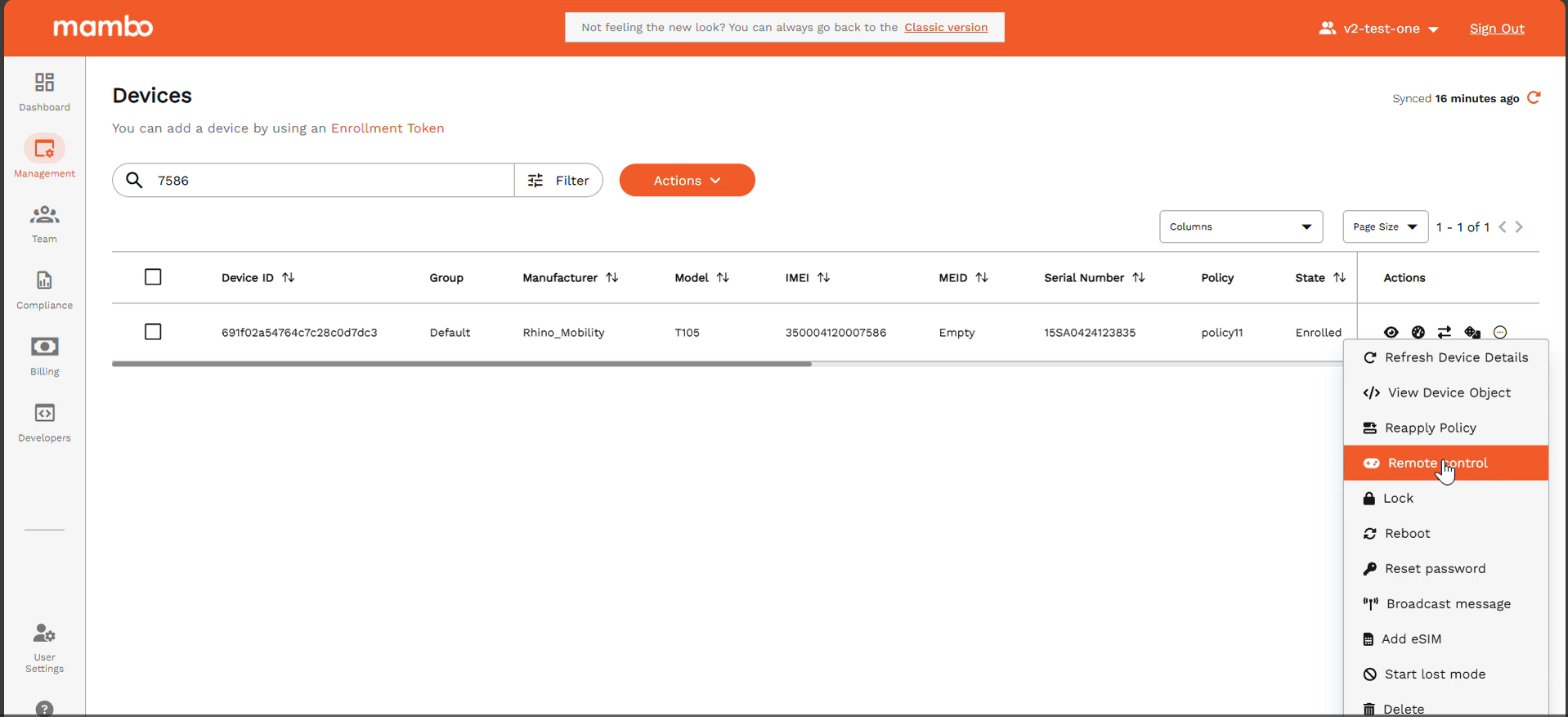
A remote control window will open in your browser where you can view and control the device in real-time.
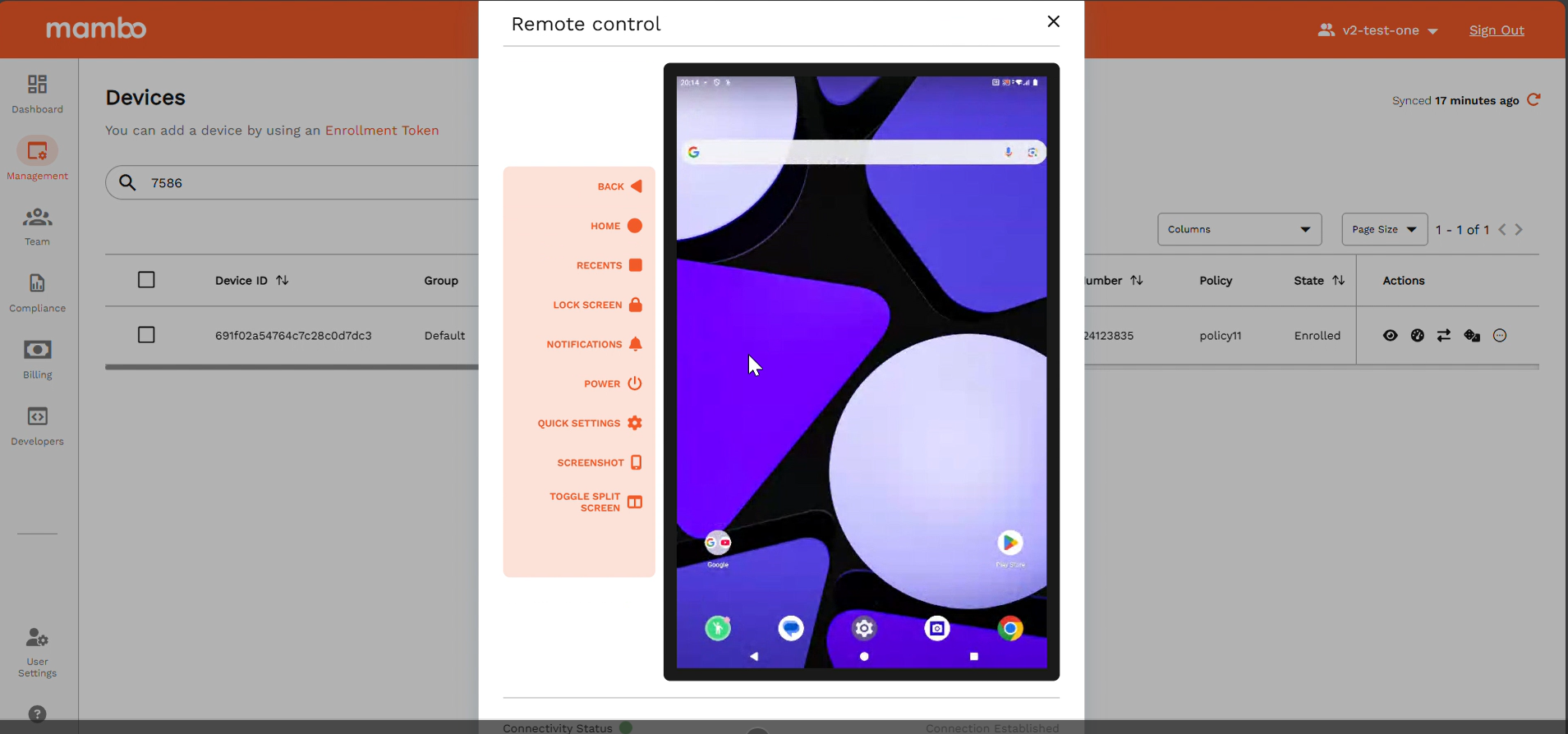
On-Screen Controls
Inside the Remote Control window, you may see the following options:
- Back – Simulates the device back button
- Home – Takes the device to the home screen
- Recents – Shows recent apps
- Lock Screen – Locks the device
- Notifications – Opens notification shade
- Power – Brings up power options
- Quick Settings – Opens quick access settings
- Screenshot – Captures the current device screen
- Toggle Split Screen – Enables split-screen mode (if supported)
These give you near full control over the device remotely.
Enable EMM Companion for Remote Control
For Remote Control to work, the EMM Companion app must be installed during enrolment.
Follow these steps to complete enrolment:
- At the Let’s set up your device screen after enrolment, select Accept & Continue.
- Select Next on the following screen.
- Tap Install on Install work apps.
- Select Next when Device Management Companion is available.
- Go back and select Set up under the mambo section.
- Tap Done.
Once this is complete, the required app is installed.
Enable the Accessibility Permission for Remote Control
You must also give the EMM Companion Accessibility permission on the device.
- On the device, go to Settings > Accessibility
- Select EMM Companion
- Enable and allow both toggles
This may differ depending on the OEM or Android version.
If you cannot find “Accessibility”, use the search option in the device Settings app.
✅ Your device should now be provisioned for Remote Control
⚠️ Important Warning
Remote Control requires screen capture to be enabled on the device.
If screenshot or screen capture is blocked by policy or device settings,
Remote Control will NOT work properly.
👉 Please ensure that Screen Capture is allowed in your device’s assigned Security Policy Component.
You can configure this here: Security Component → Screen capture → Enabled