
Security Component
The Security Policy Component is used to control how secure a device must be.
It lets you manage screen lock requirements, encryption, system restrictions, and what actions users are allowed to take on the device.
Use this component when you need to protect data and prevent misuse of a managed device.
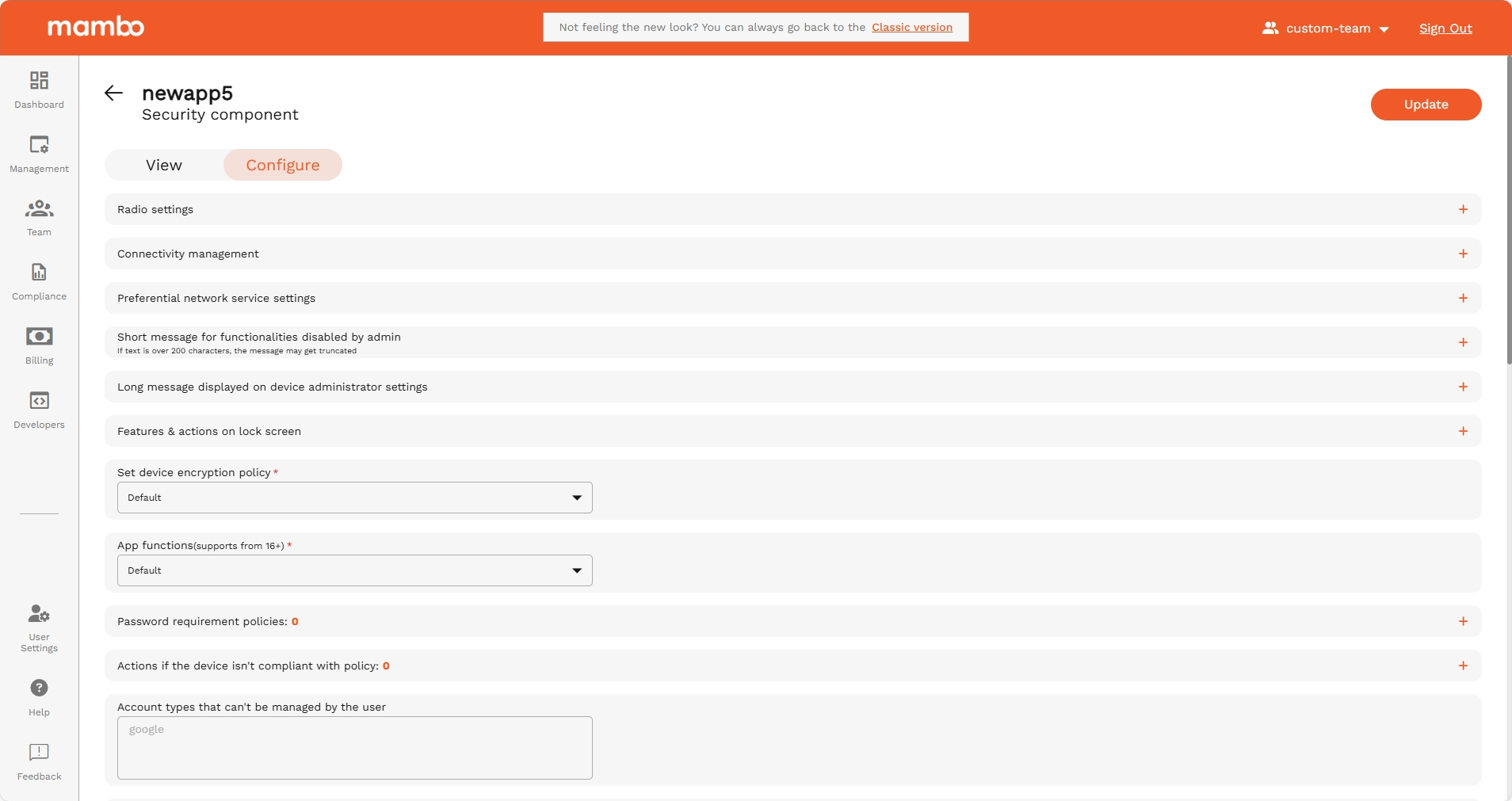
Security requirements
Default Wi-Fi state
Controls whether Wi-Fi is enabled or disabled by default on the device.
Recommended:
Keep enabled unless the device must strictly use mobile data only.
Default airplane mode state
Defines whether Airplane mode is on or off by default.
Recommended:
Keep disabled unless the device must remain offline.
Default data roaming state
Controls whether the device is allowed to use data while roaming.
Recommended:
Disable to avoid unexpected mobile data charges.
Default USB data signaling availability
Controls whether data can be transferred over USB when connected to a computer.
Recommended:
Disable for secure environments to prevent data extraction.
Connectivity management
USB data access
Controls the ability to transfer data using a USB cable.
Recommended:
Disable for corporate or shared devices.
Default VPN configuration
Controls whether a VPN is automatically required or applied to the device.
Recommended:
Enable if your organization uses VPN for secure communication.
Wi-Fi network configuration
Controls whether users can modify Wi-Fi network settings.
Recommended:
Disable on kiosk / enterprise devices.
Tethering and sharing
Tethering settings
Allows or blocks mobile hotspot / tethering
Recommended:
Disable for cost and security control.
NFC / Bluetooth / File sharing
Controls multiple sharing methods including Bluetooth and NFC.
Recommended:
Disable unless device requires sharing capability.
Setup & system restrictions
Factory Reset Protection (FRP)
Controls whether a Google account is required after a factory reset.
Recommended:
Enable to prevent theft and unauthorized reset.
Block USB debugging
Prevents the use of developer mode USB debugging.
Recommended:
Enable for security.
Add custom lock message
Displays a message on the lock screen such as:
“This device is managed by your administrator”
Useful for:
- Lost & found messages
- Ownership identification
- Compliance warnings
Password & screen lock
Required password policies
You can enforce:
- PIN / Password length
- Complexity requirements
- Minimum character types
- Max failed attempts
- Password expiration
Recommended for: Corporate-owned and regulated devices.
Screen lock settings
Control how the screen lock behaves:
- Timeout before locking
- Automatic lock
- Required authentication
This prevents unauthorized physical access to the device.
User account restrictions
Accounts that can’t be managed by the user
You can prevent users from adding or removing certain accounts.
Recommended:
Block personal email or cloud storage accounts on managed devices.
Supervised / work profiles
You can control:
- Access to personal apps
- Access to work apps
- Access to data between profiles
Recommended for BYOD or dual-use devices.
Hardware restrictions
You can allow or block access to:
- 📷 Camera
- 📍 Location
- 🎤 Microphone
- 📡 Bluetooth
- 🌐 Wi-Fi
- 📞 Phone calls
- 📩 SMS
- 📲 NFC
- 💾 External storage
- 📤 Clipboard sharing
Tip:
Only enable what is absolutely necessary for device use.
Summary
Use the Security Policy Component to:
✔ Enforce lock screen and password rules
✔ Prevent data leakage (USB, NFC, Bluetooth)
✔ Control network and roaming activity
✔ Restrict apps and system access
✔ Protect against device tampering
✔ Enforce company security standards
This is the most important component for enterprise compliance and data protection.