
Update Policy Components for an Existing Policy
Once a policy is created, you can update or change its Policy Components at any time.
This allows you to adjust how your devices behave without creating a new policy from scratch.
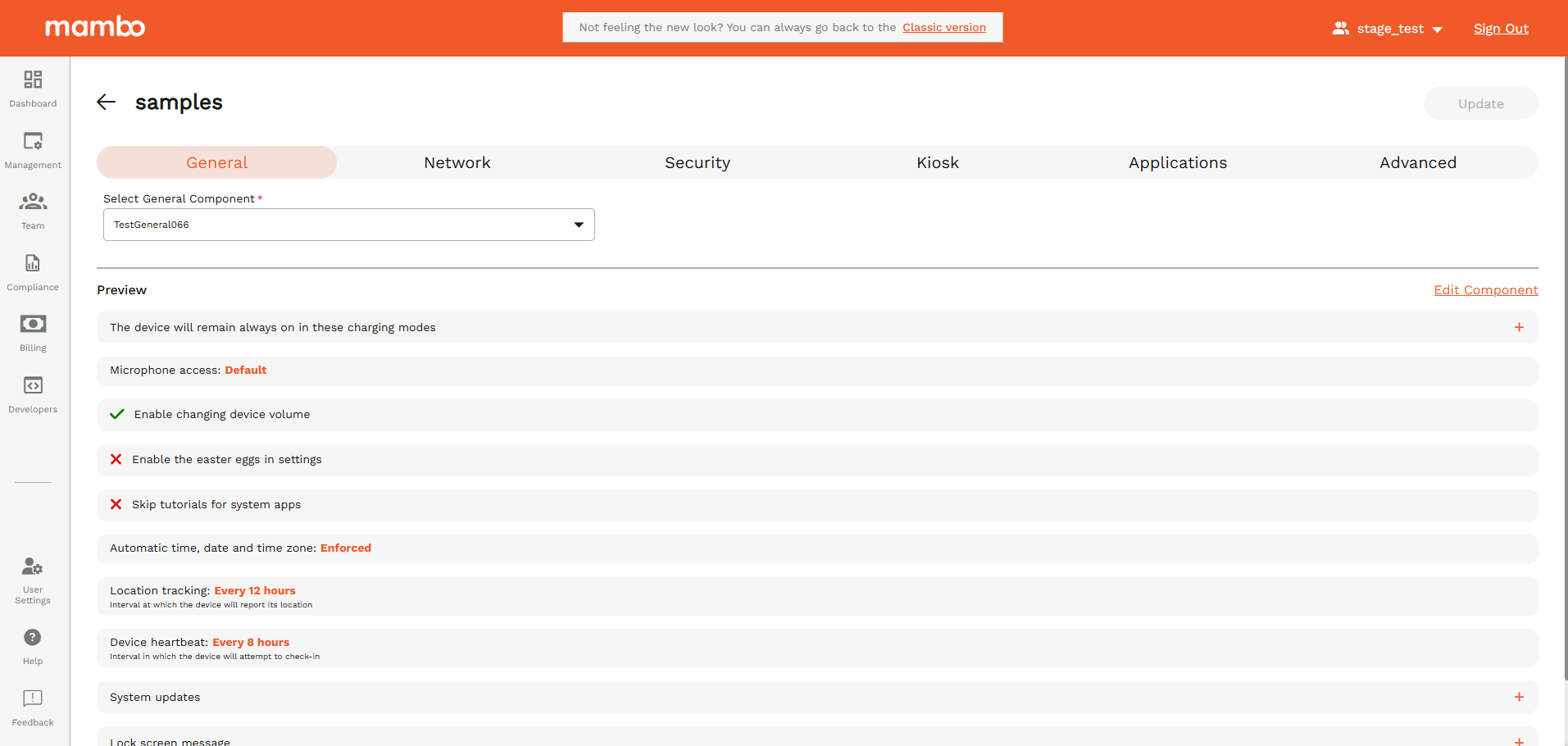
Step 1: Open the Policy
- Log in to the Mambo EMM console
- Go to:
Management → Policies - Click on the policy you want to update
You will be taken to the Policy configuration page.
Step 2: Click the “Components” Option
Inside the policy view, click the Components option for that policy.
This will open the component selection screen.
Here you’ll see tabs for each component category:
- General
- Network
- Security
- Kiosk
- Applications
- Advanced
Each tab represents a different type of configuration for the device.
Step 3: Select or Change a Component
Under each tab, you can:
- Select an existing Policy Component from the dropdown
- Replace a previously selected component
- Switch between different components of the same type
✅ Example shown in the image:
- A General Component named
TestGeneral066is currently selected.
Once selected, a Preview of that component’s settings will appear below.
Step 4: Review the Preview
In the Preview section you can see:
- Charging behavior
- Microphone access
- Volume control
- System options
- Location reporting interval
- Device heartbeat
- Update settings
- Lock screen message
- Display options
This helps you verify that the correct component is applied before saving the changes.
Step 5: Edit the Component (If Required)
If you need to modify the component itself:
- Click Edit Component on the right side of the preview
- Update the required settings
- Save the changes
Any update to a component will automatically affect all policies that use that same component.
Step 6: Save / Update the Policy
After selecting or changing your components, click the Update button in the top-right corner.
Once saved:
- The updated configuration is pushed to the devices
- Devices will receive the new settings on the next sync or heartbeat
Important Notes
- A single policy can contain multiple components (one from each category)
- You can reuse the same component across multiple policies
- Changes to a component affect all linked policies
- Always test changes on a small group of devices first
Summary
Using the Components option on a policy, you can:
✅ Switch between different configurations
✅ Preview settings before applying
✅ Re-use existing components
✅ Update devices without creating a new policy
This gives you full flexibility to adjust your device management strategy quickly and safely.
What's Next?
- 🧩 Policies can be customized with Policy Components
- ➡️ You can Assign your policy to a device(s).
- ➡️ You can Assign your policy to a group.