
Change a Member's Role
You can change a Member's Role at any time. Any change in permissions will reflect immediately for that user.
Steps to Change a Member’s Role
- Once logged into the mambo EMM console, navigate to Team > Members.
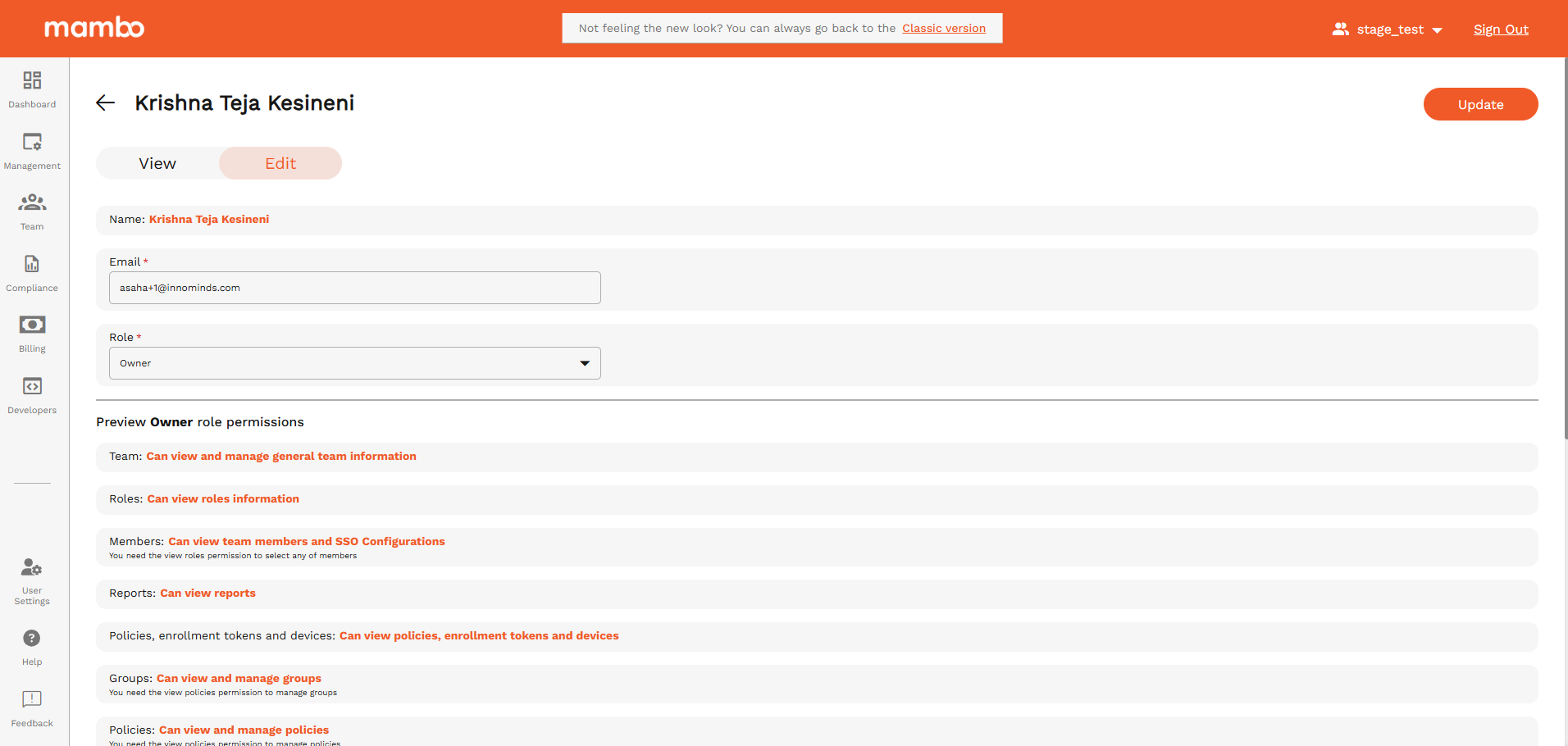
- From the members list, select the user whose role you want to change.
- click Edit icon.
- Click the Role dropdown and select the role you have already configured.
- Review the permission preview to confirm the access that will be granted.
- Once finished, click Update to save your changes.
✅ The new role and permissions will be applied immediately.
✅ The user may need to refresh or re-login to see updated access.
What’s Next?
After changing a member’s role, you may want to:
- 🔧 Create or modify Roles to match your organization’s workflow
- 👥 Add new Members and assign appropriate roles