
Deleting a Device
The Delete action performs a factory reset (wipe) on the device and removes it from your Devices list in the mambo EMM console.
This action is permanent and irreversible.
Use this option when a device is lost, stolen, decommissioned, or reassigned outside your organisation.
What happens when you delete a device?
- The device is wiped (factory reset)
- All corporate data and policies are removed
- The device is removed from your device inventory
- The action cannot be undone
⚠️ If the device is offline, the wipe command will be sent when it next comes online.
Steps to Delete a Device
- Log in to the mambo EMM Console
- Go to Management → Devices
- Find the device you want to delete
- In the Actions column, click the More (⋯) menu
- Select Delete
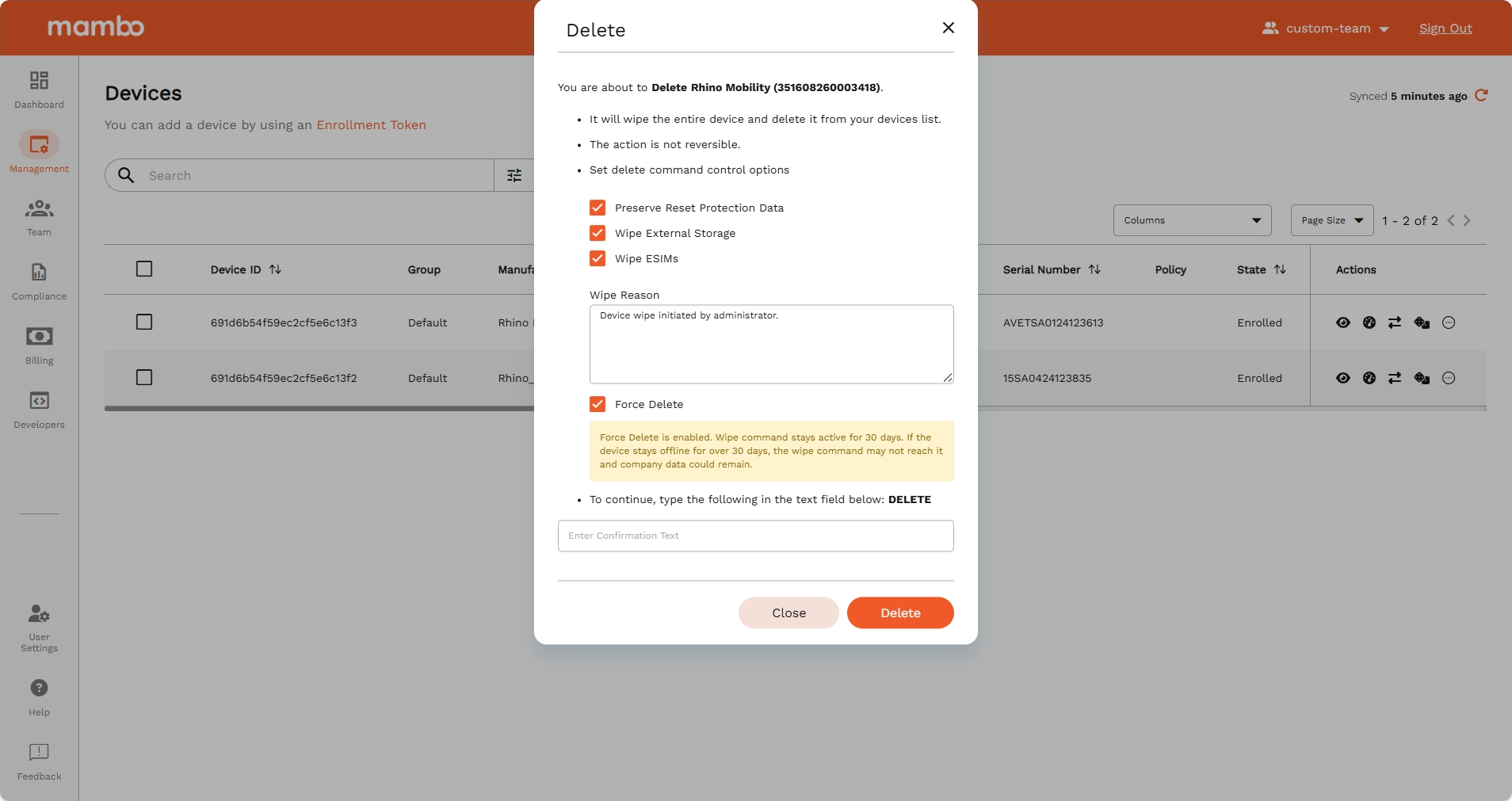
You will now see the Delete Device confirmation window.
Delete Options Explained
In the confirmation dialog, you can choose the following options:
✅ Preserve Reset Protection Data
Keeps Factory Reset Protection (FRP) data.
- Prevents unauthorized users from re-setting up the device
- Recommended for lost/stolen devices
✅ Wipe External Storage
Also deletes data on any external SD cards.
- Recommended for full decommissioning
✅ Wipe eSIMs
Removes any eSIM profiles installed on the device.
- Recommended when transferring ownership
Wipe Reason (Optional)
You can enter a Wipe Reason, such as:
Lost by employeeDevice returned damagedRetired device
This is helpful for audit trails and tracking purposes.
Force Delete Option
If Force Delete is enabled:
- The wipe request remains active for up to 30 days
- If the device comes online in that period, the wipe is executed
- If the device remains offline, company data may remain on it
⚠️ Use Force Delete only when necessary, especially for missing devices.
Final Confirmation
For security reasons, you must type: DELETE
in the confirmation field before the Delete button becomes active.
Once typed:
- Click Delete
- The command is sent to the device
- The device status will update to Pending Delete once action is completed
Permissions Required
To delete a device, your role must include:
- ✅ Can wipe/delete devices
- ✅ Can view devices
If you do not see the Delete option, contact your Team Administrator.
What’s Next?
- 🔐 Learn how to Lock a device
- 🔄 Learn how to Reboot a device
- 🔧 Learn how to Reset device password
- 📡 Learn how to Remote control a device