
Reset Device Password
The Reset Password action allows an administrator to remotely set or clear the lock screen password on a managed device. This is useful when a user forgets their PIN/password or when an extra layer of security is required.
This command is available from the Devices page in the mambo EMM console.
What does Reset Password do?
- Sets a new device password/PIN remotely
- Can clear the existing password (if left empty)
- Can optionally lock the device immediately after reset
- Can prevent the password from being changed again until the user enters it once
✅ Works best on fully managed devices.
⚠️ Behavior may vary depending on Android version & OEM.
How to Reset a Device Password
- In the mambo EMM console, go to
Management > Devices - Locate the device you want to reset the password for
- Open the Actions (⋯) menu
- Select Reset password
- Enter the new password / PIN in the New device password field
(Optional: leave it empty to clear the password if allowed by policy) - Select any optional flags (see below)
- Click Reset Password
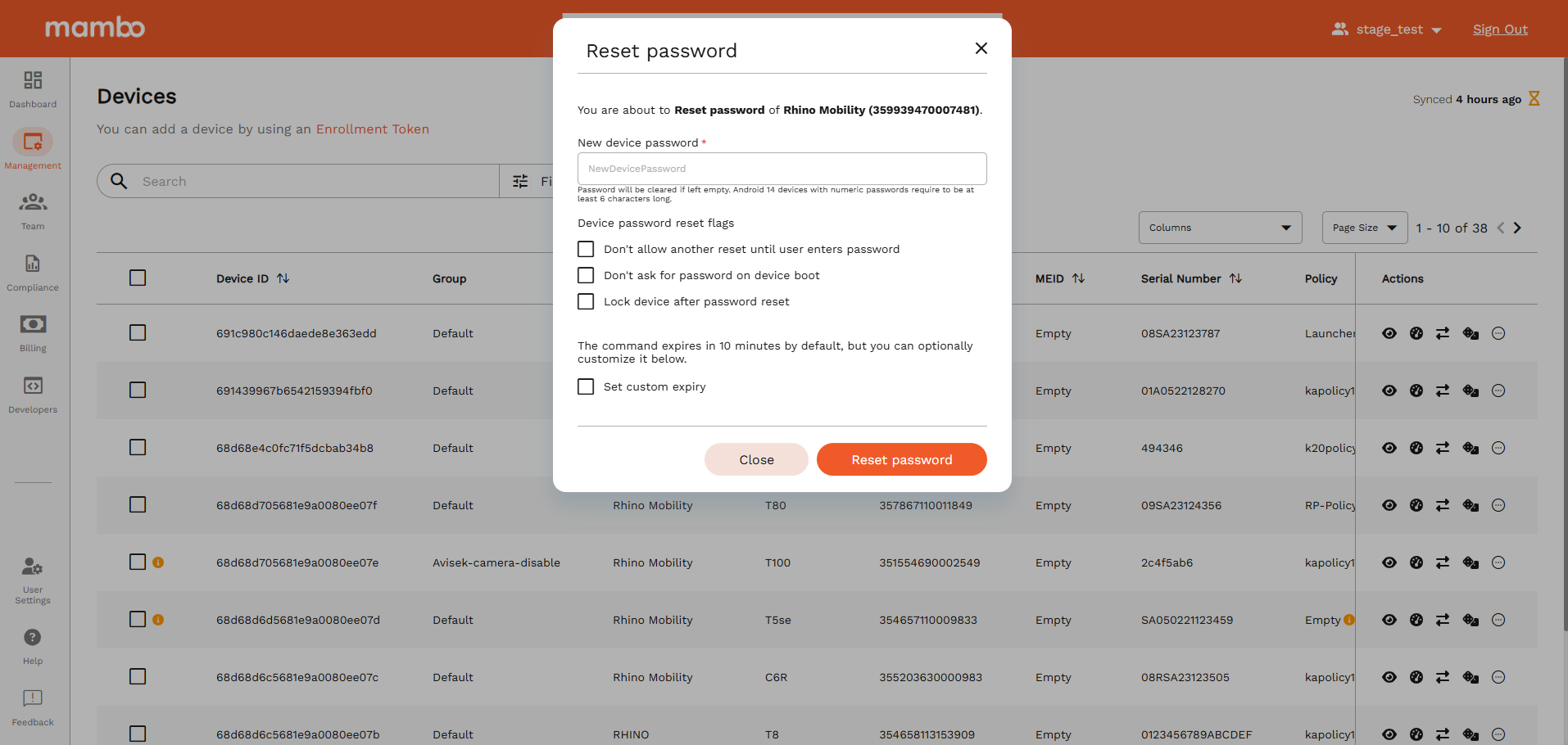
The command will be sent to the device immediately.
Reset Password Flags (Advanced options)
You may optionally apply one or more of the following flags:
Command Expiration
By default, the reset command expires in 10 minutes.
You can:
- Enable Set custom expiry
- Choose the duration (seconds / minutes / hours)
If the device doesn’t receive the command before expiry, it will not be applied.
Important Notes
- The password must meet the device’s minimum security requirements (for example, Android 14 may require at least 6 digits for numeric PINs).
- If a device is offline, the command will remain pending until the device reconnects.
- Some devices may restrict or modify behavior based on:
- OEM restrictions
- Android version
- Current device policy
What’s Next?
You may also want to review:
- Lock Device – Instantly lock a device
- Reboot Device – Restart the device remotely
- Wipe Device – Factory reset in case of loss or theft
- Remote Control – Interact directly with the device screen