
Application Component
The Application Policy Component lets you control which apps are allowed, blocked, or managed on devices.
You can also control app updates, permissions, and how apps behave on both work and personal profiles.
Use this component to manage app availability, security, and user access.
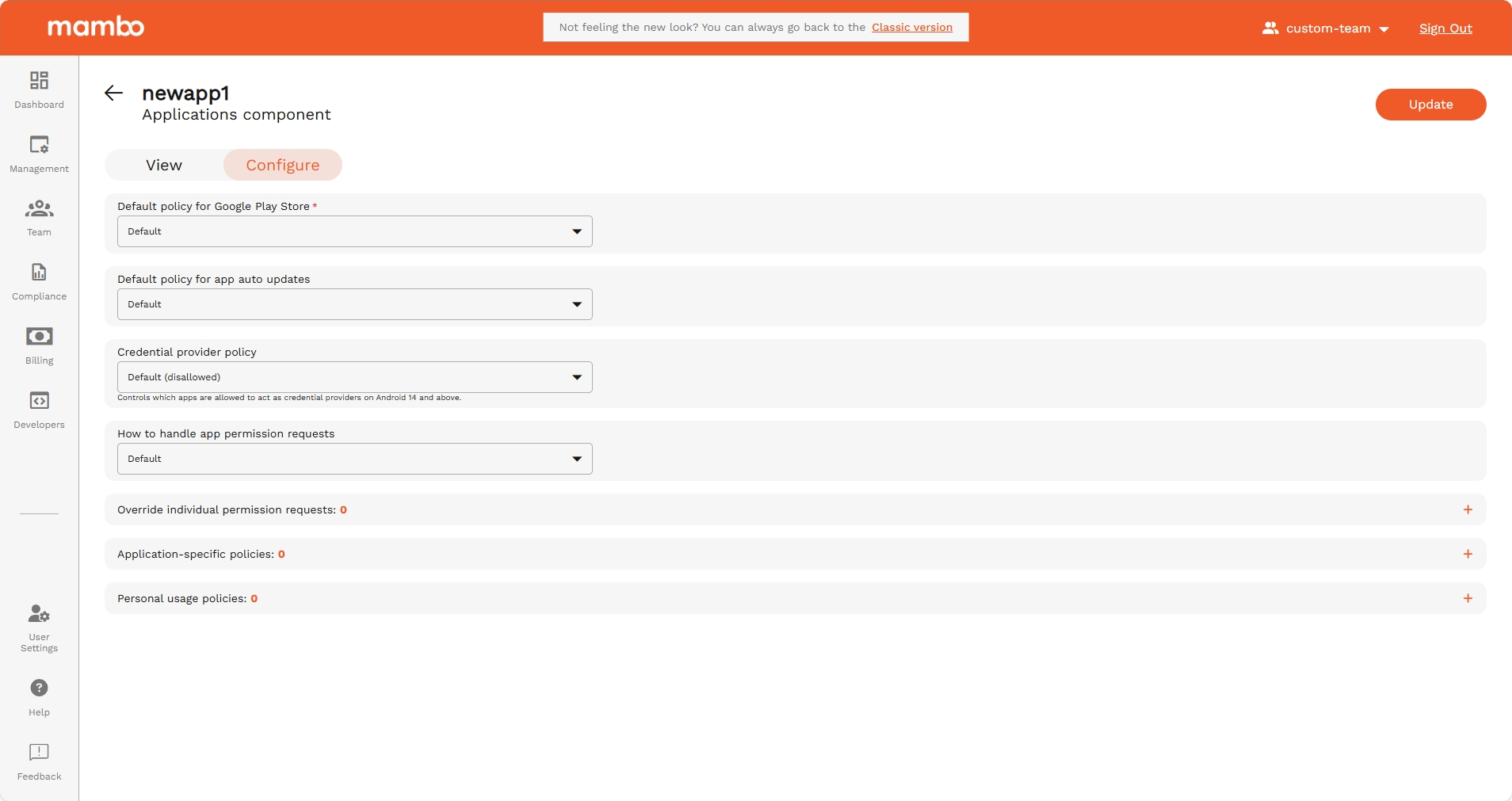
Default policy for Google Play Store
Controls how the Google Play Store behaves on the device.
Examples:
- Default access
- Restricted access
- Fully blocked
Recommended for:
- Blocking app downloads on kiosk devices
- Allowing only admin-approved apps
Default policy for app auto updates
Controls whether apps are automatically updated.
Options may include:
- Default (system controlled)
- Automatic updates allowed
- Automatic updates blocked
Recommended:
- Enable auto-updates for security
- Disable for environments where stability is critical
Credential provider policy
Controls if apps are allowed to use saved credentials (passwords, certificates, etc.).
Typical option:
- Disallowed – Blocks use of personal credential storage
Recommended for: High-security or shared devices.
App permission requests
How to handle app permission requests
Defines how permissions like camera, location, or microphone are granted:
- Default – User is prompted
- Auto allow / Auto deny (when supported)
Recommended for:
- Kiosk mode – auto deny
- Work devices – admin decides
Override individual permission requests
Use Add Override to define different behavior for specific permissions.
Example:
- Always allow camera for scanning app
- Always deny microphone for all apps
Application-specific policies
You can add apps individually using the Add Application option:
- Play Store – Add apps from managed Google Play
- Package name – Add app using its package ID (e.g.
com.company.app) - Private application – Add internal enterprise apps
- Mambo Device Insights – Add system/management apps
Once added, you can:
- Allow / block the app
- Force install or uninstall
- Configure managed settings
- Control permissions
Recommended for: Whitelisting only approved business apps.
Personal usage policies
These settings control how apps behave in the personal profile (on BYOD or Work Profile devices).
Control how apps in the personal profile are handled
Set rules for apps on the personal side:
- Default behavior
- Restricted behavior
- Fully blocked (on supported devices)
Applied to applications on the personal profile
You can also apply specific rules to:
- Specific apps in the personal profile
- App categories
- App stores
This is useful for BYOD environments where some restrictions are still required.
Summary
Use the Application Policy Component to:
✔ Allow or block specific apps
✔ Control Google Play access
✔ Manage app permissions
✔ Force install or remove apps
✔ Control apps on personal and work profiles
✔ Keep devices secure and compliant
What's Next?
- 🌐 Learn how to Add a Web App to an Application Component
- 📊 Learn how to Configure RHINO Device Insights